3 steps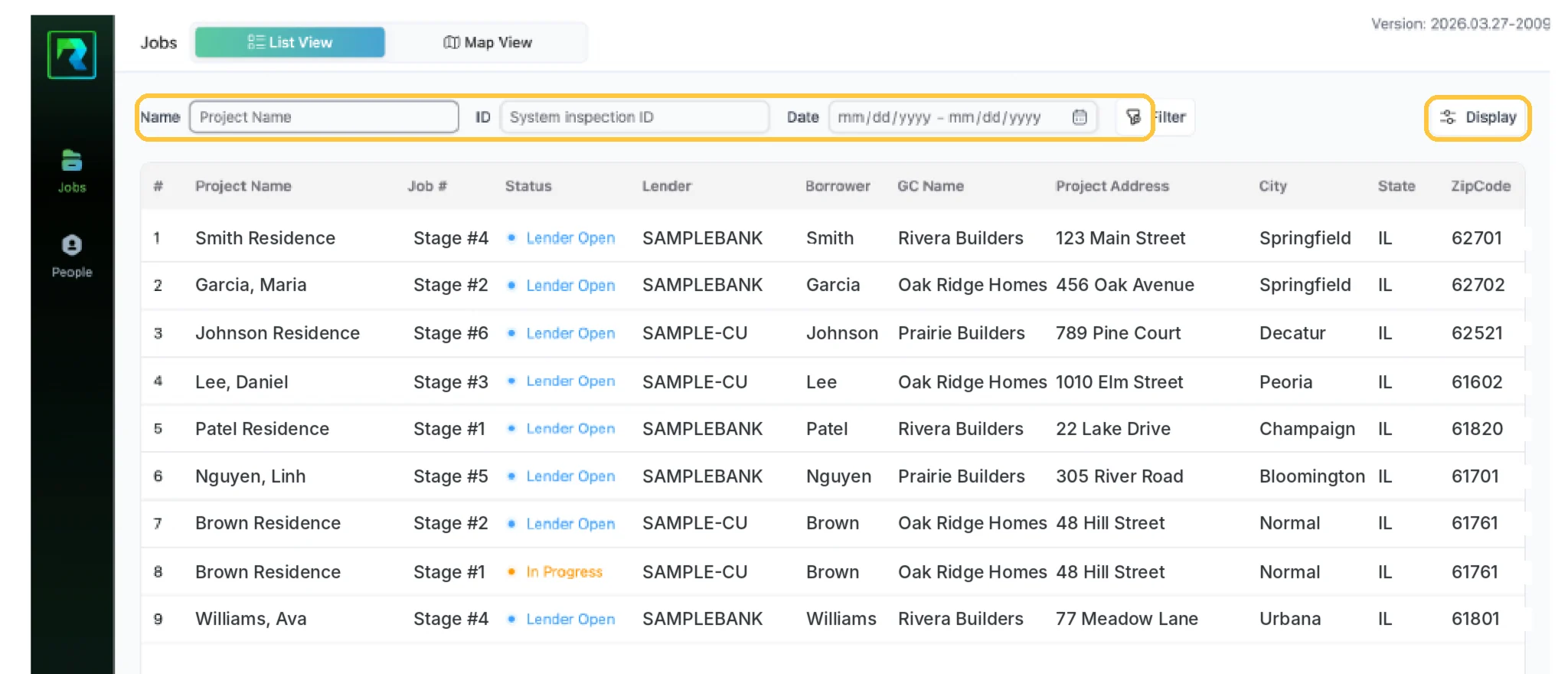
Guide 1
Finding Your Jobs in the Jobs List
Jobs is your inspection queue: every assignment in one table, with the status that tells you what to do next.
One workspace for draw inspection vendors: jobs, clients and teams, with reports and payouts once work is approved.
13 guides · 4 stages
Runs on: Desktop and tablet. A web app you open in a browser; it is not built for phones.
Each guide is one task in the Inspector Portal, from your first sign-in to managing a team of inspectors.
Sign in, read the Jobs list, filter it and plan a route on the map.
Guide 1
Jobs is your inspection queue: every assignment in one table, with the status that tells you what to do next.
Guide 2
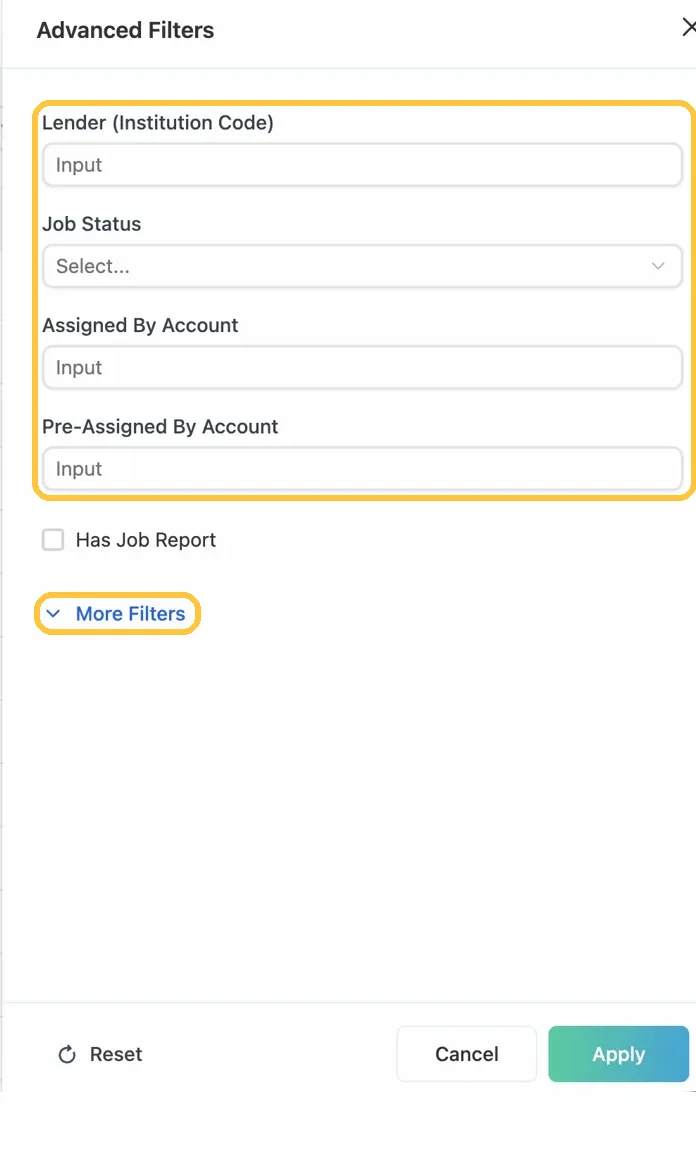
Advanced Filters narrow a long job list by lender, status, assignment or any ID, so you see only the jobs that need you.
Guide 3
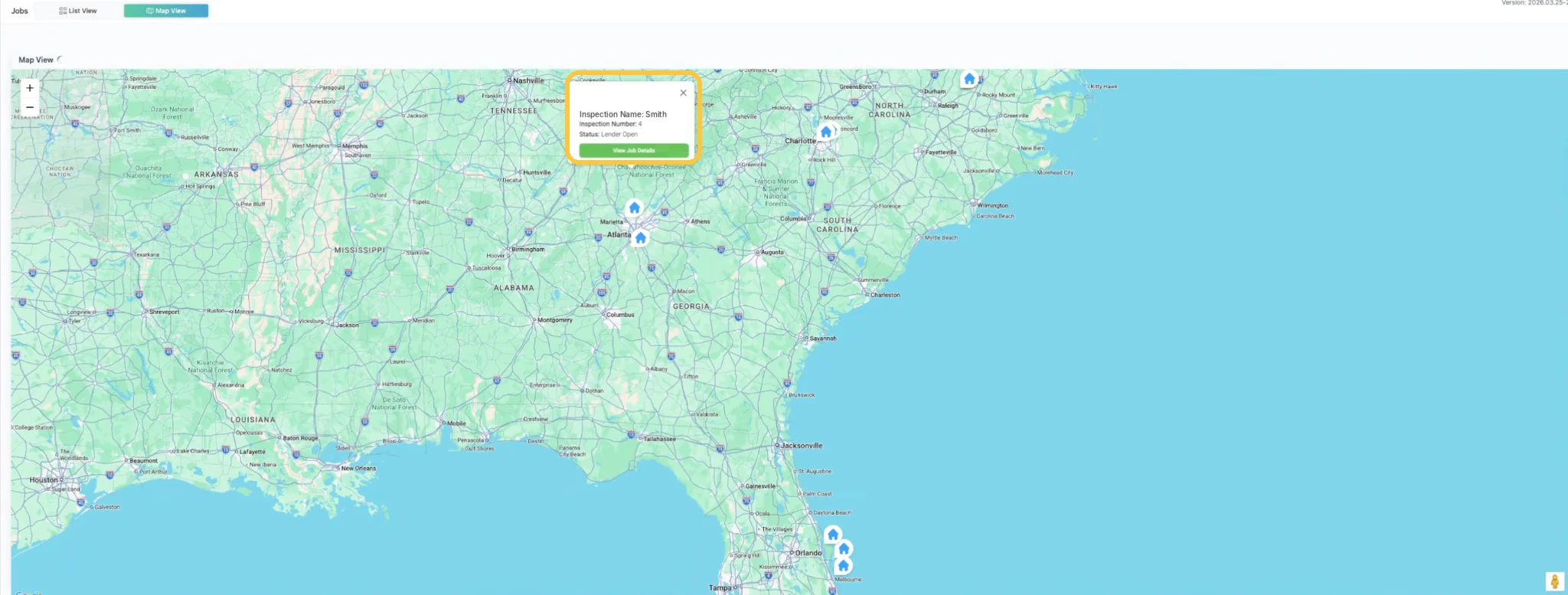
Map View plots every assigned inspection, so you can group nearby jobs and sequence a day with the least driving.
Work the Overview, Questionnaire, Draw Sheet and Photos tabs, submit the report and reopen it if the lender rejects.
Guide 4Residential
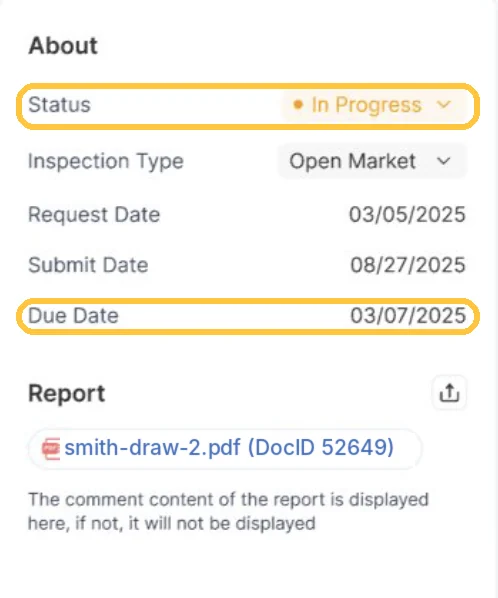
The Overview tab is the job's reference sheet: property context on the left, status, dates and the report on the right.
Guide 5Residential
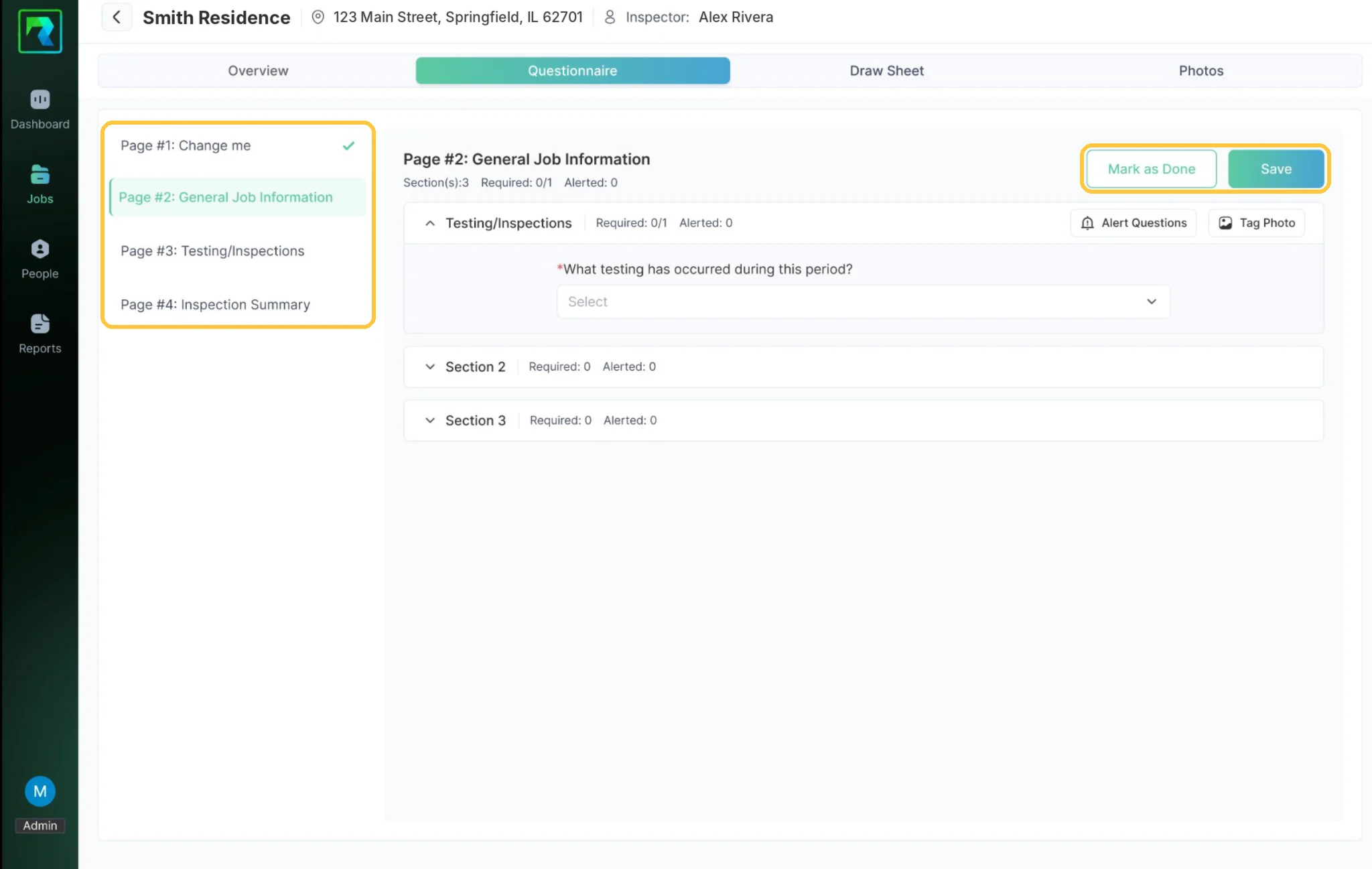
The Questionnaire documents condition and progress page by page, with required counters, alerts for the lender and photos tagged to questions.
Guide 6Residential
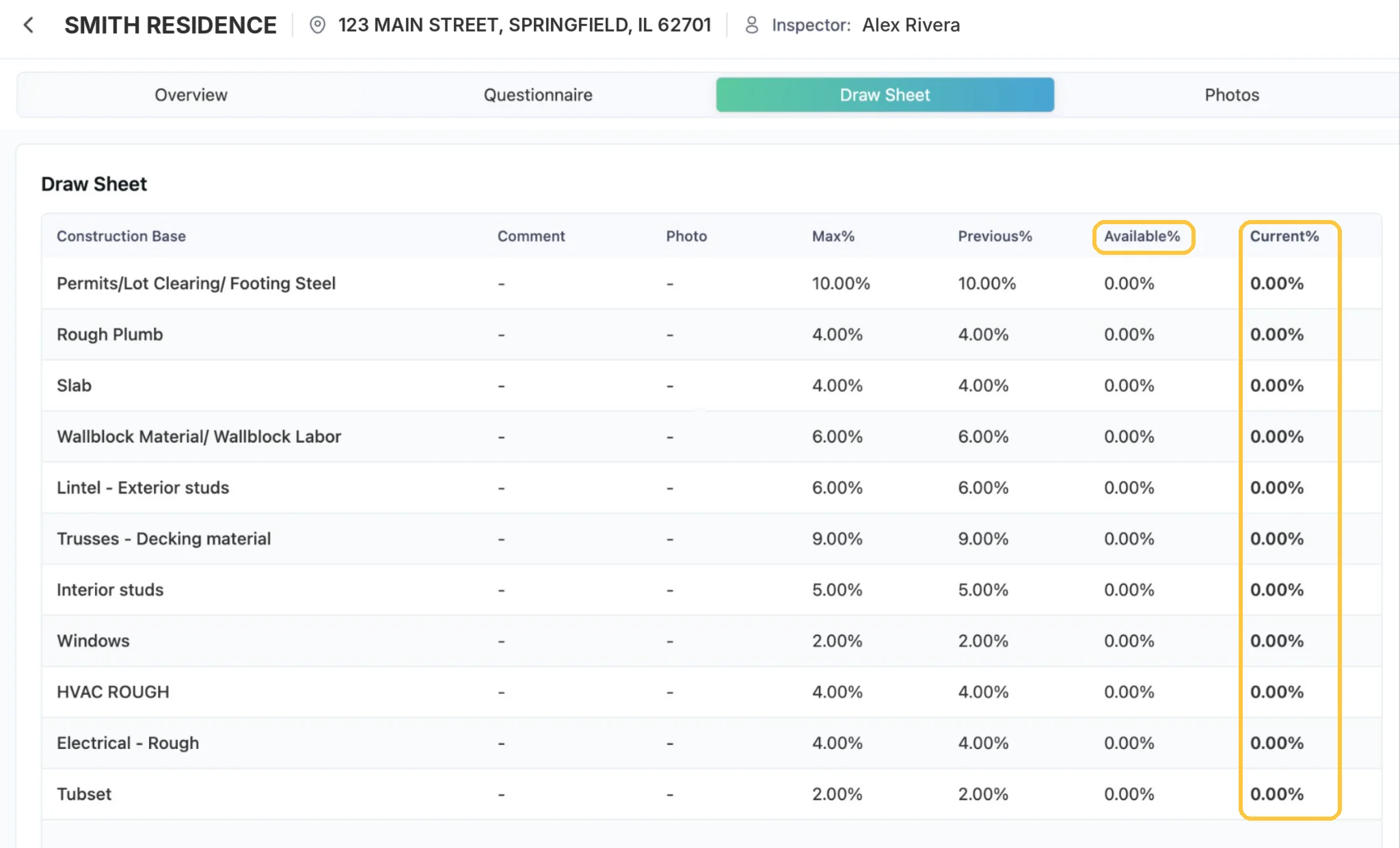
The Draw Sheet turns your site visit into percentages: enter Current% per line item, never above the Available% column.
Guide 7
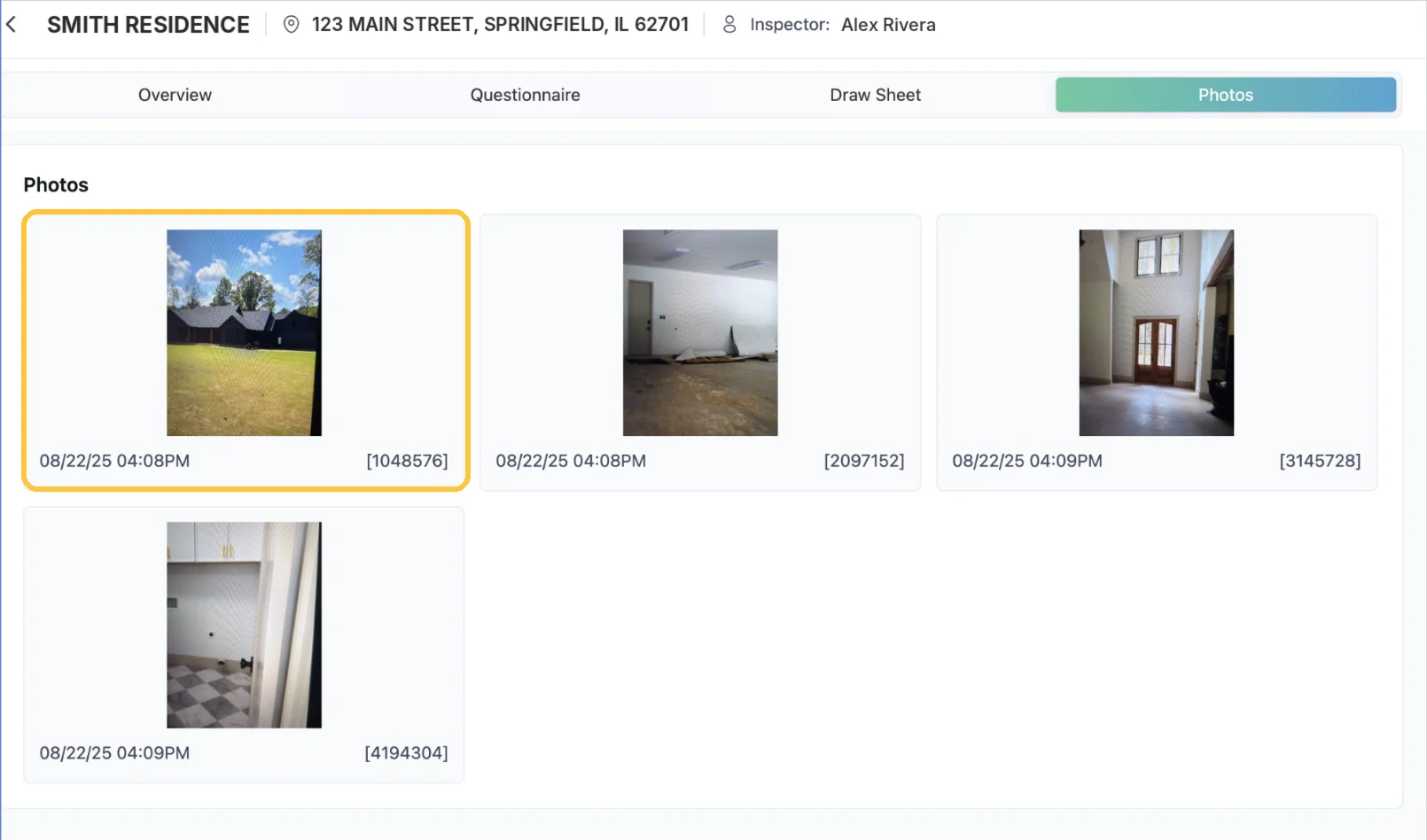
Photos are the evidence behind every Draw Sheet percentage: upload as you go, add comments and tag each one to its question.
Guide 8
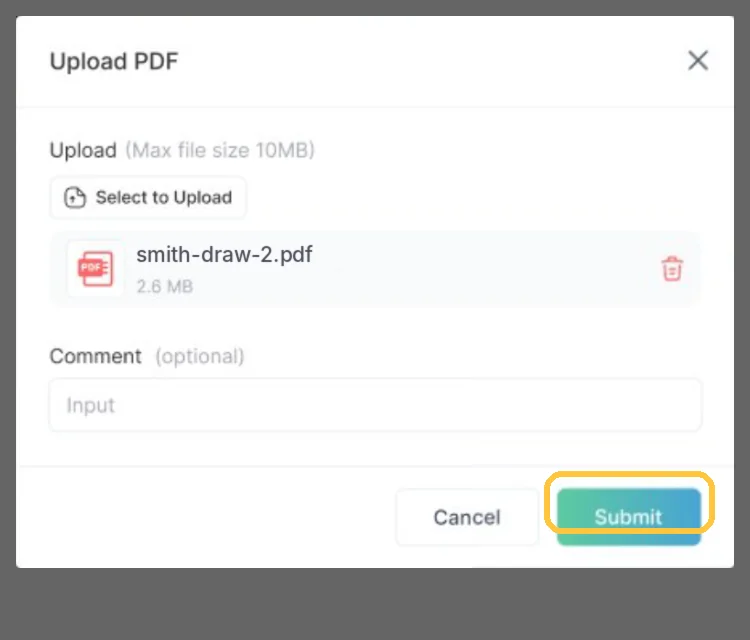
Submit Report compiles the Questionnaire, Draw Sheet and photos into the PDF the lender reviews in the Ordering Engine.
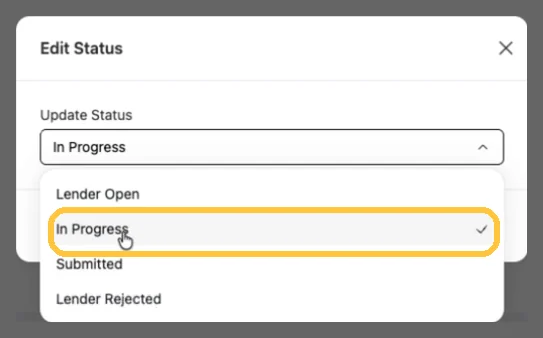
Guide 9
When a lender rejects a report, set the status back to In Progress so you can fix it and submit again.
For managers and admins: the inspector list, each inspector's profile and lender access, and the audit trail.
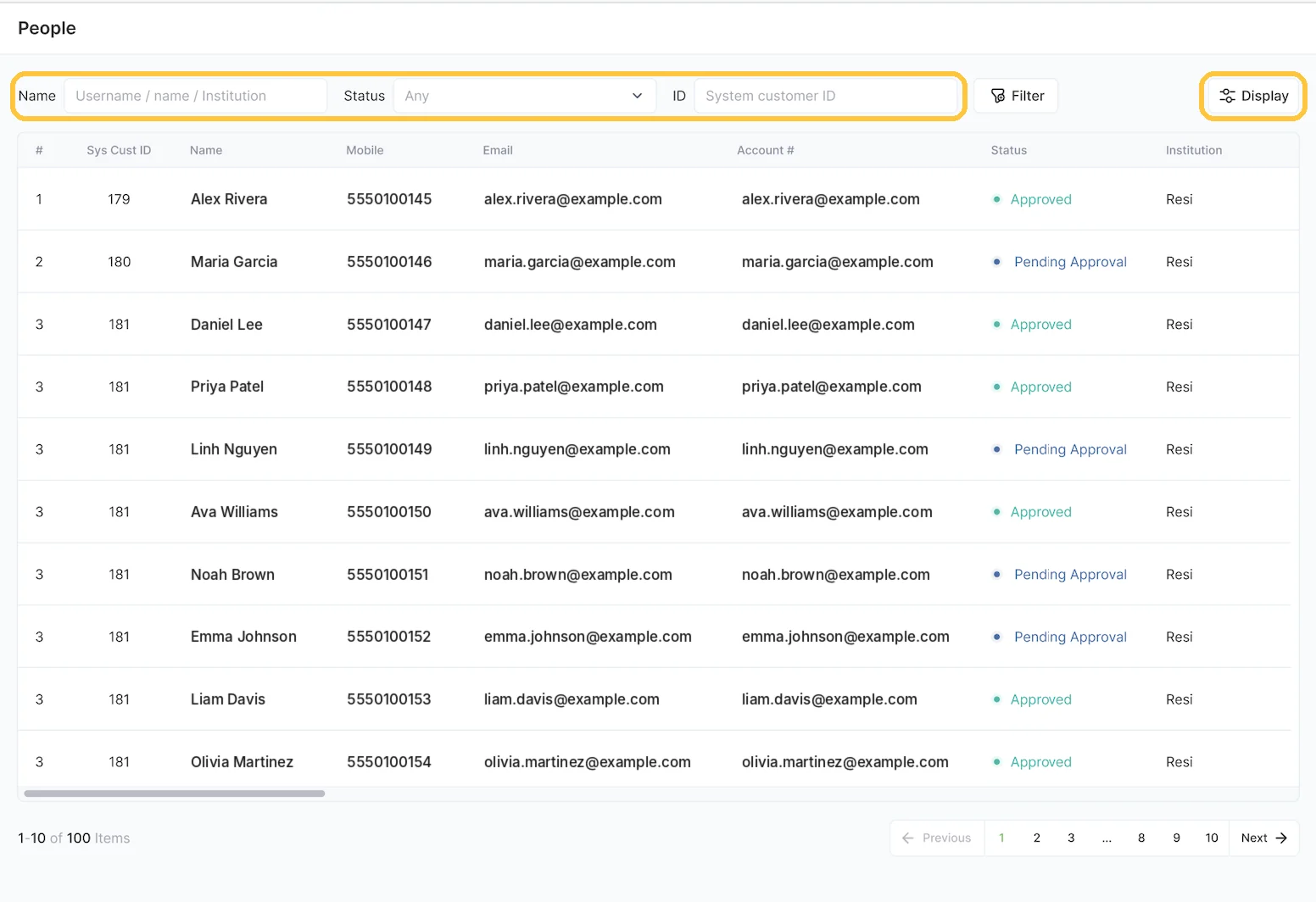
Guide 10
People lists every inspector in your company with workload metrics, so managers can balance assignments at a glance.
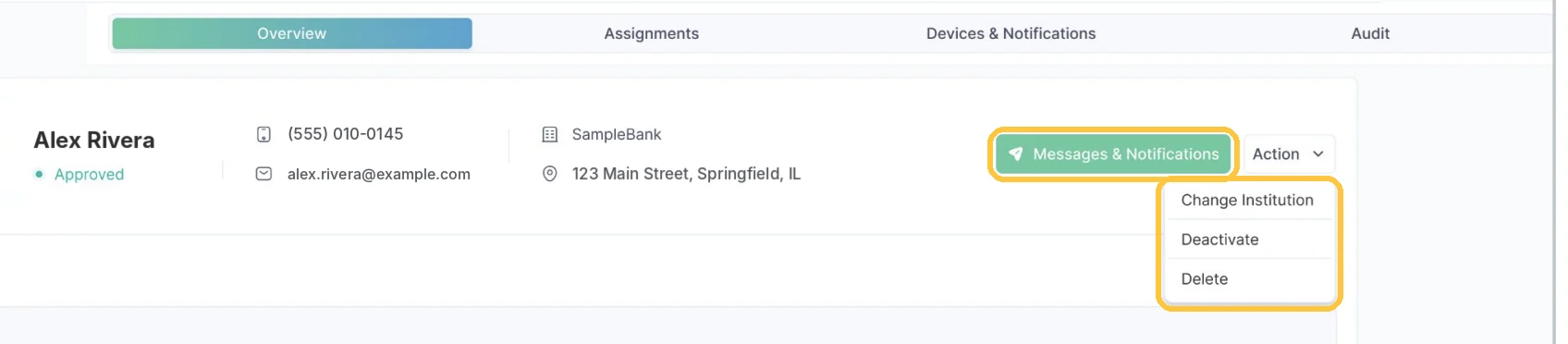
Guide 11
An inspector’s profile holds their details, permission role, authorized lenders and work locations, and lets you message their device.
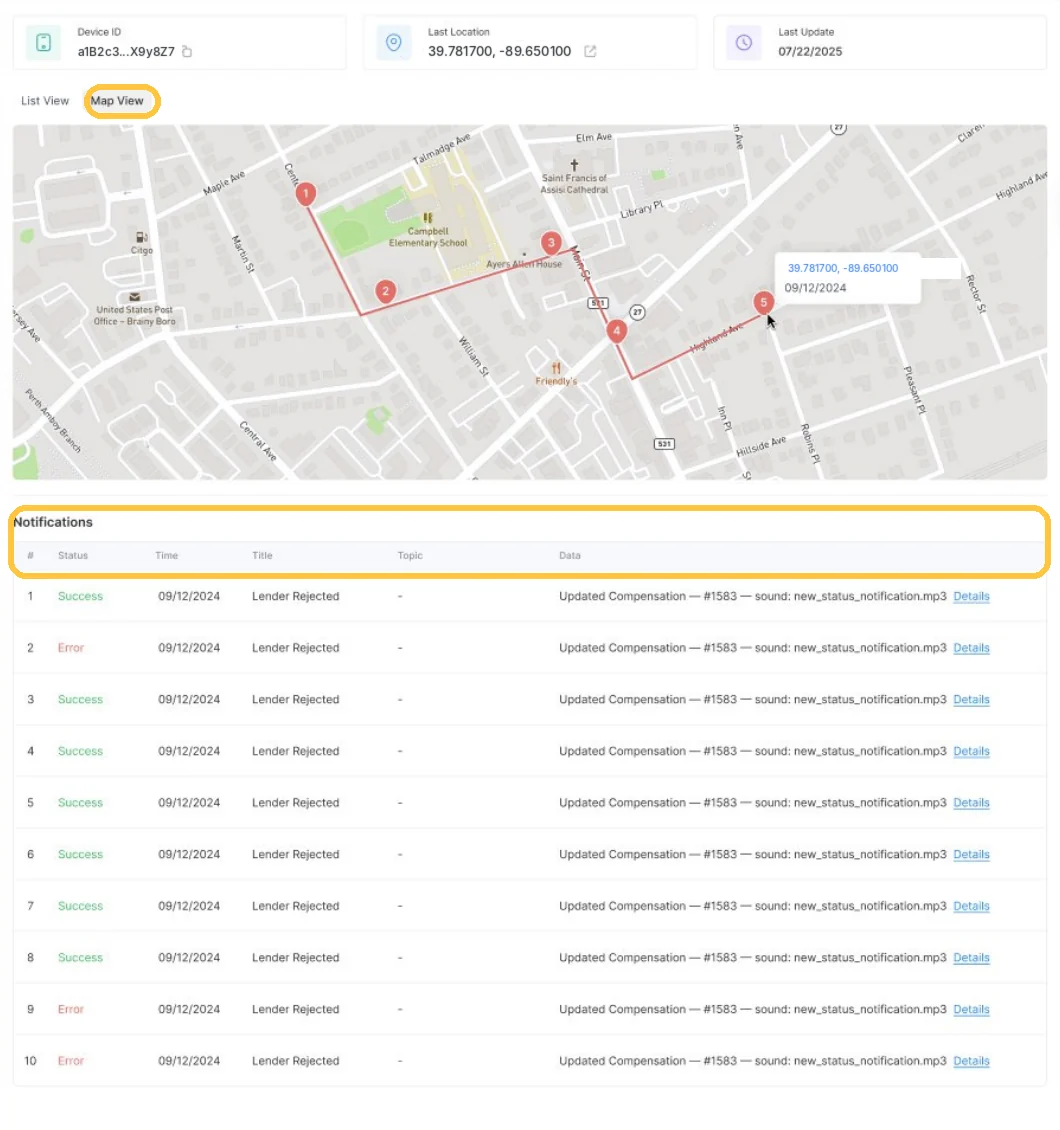
Guide 12
Assignments, Devices & Notifications and Audit show what an inspector is working on, where their device has been and who changed their settings.
Keep your own details and password current.
Guide 13
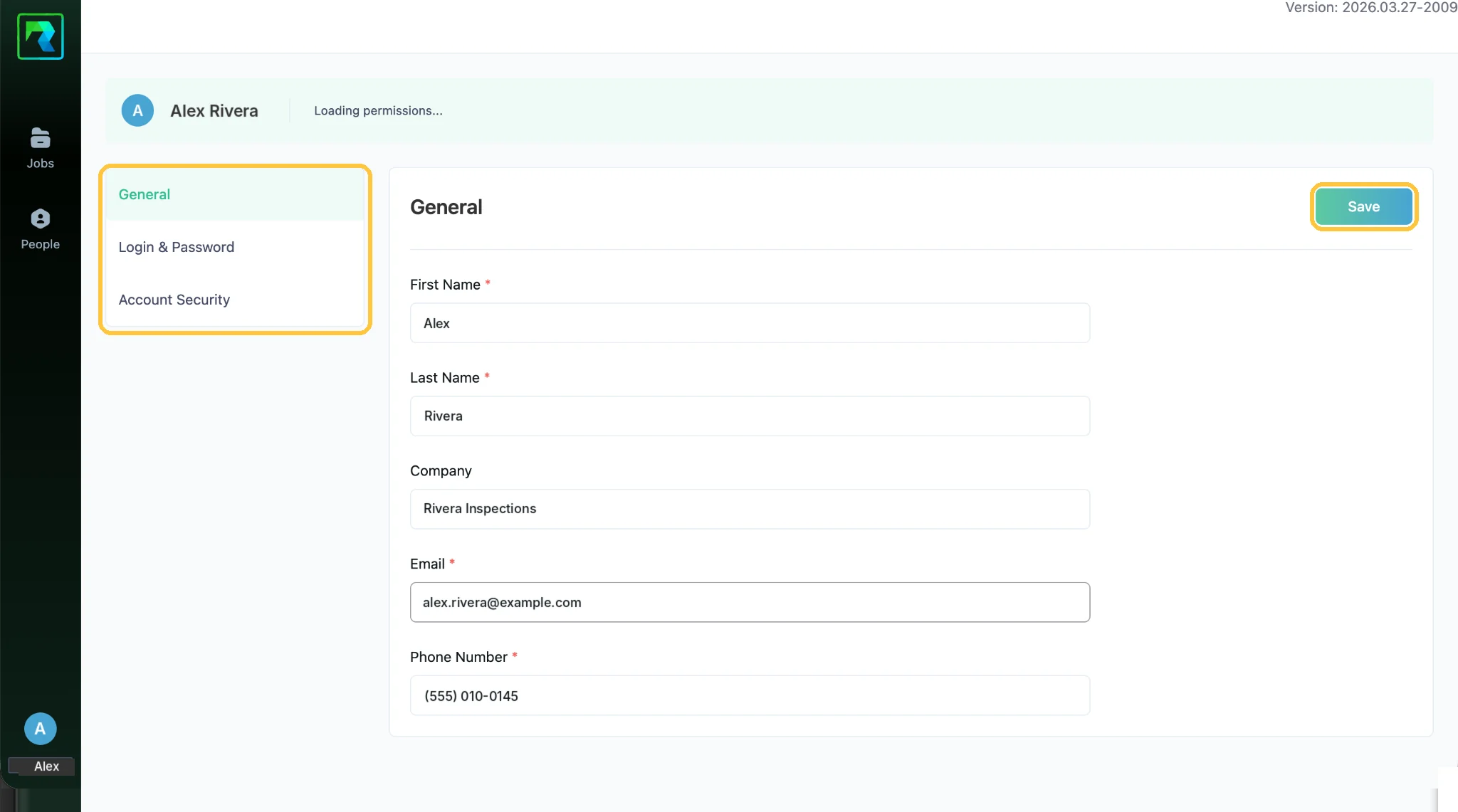
Account Settings keeps your name, company, email, phone and password current; lender access and assignments live in People.
For field inspectors
For lenders
For tech teams
For AI assistants
Ask RAZE AI for an instant answer from these guides, or send a request and the RAZE support team replies by email.
Ask RAZE AI.
Instant answers from these guides, any time.
Send a support request.
Tell us the product and guide; the form is here.
Call or email.