4 steps
Guide 1
How an Inspection Moves Through the RAZE API
Your system orders and decides, the inspector works in RAZE, and four statuses tell you where every inspection stands.
API documentation and setup help to order draw inspections from your own loan system and pull reports and photos back.
10 guides · 3 stages
Runs on: Web browser. Your tech team signs in on the web and builds the integration into your own loan system.
Each guide is one step of an External System integration, from your first access token to your first live order.
See how an inspection moves through the API, then get your access and sign in.
Guide 1
Your system orders and decides, the inspector works in RAZE, and four statuses tell you where every inspection stands.
Guide 2
RAZE sets you up in two environments, Stage for testing and Production for live orders, each with its own service account.
Guide 3
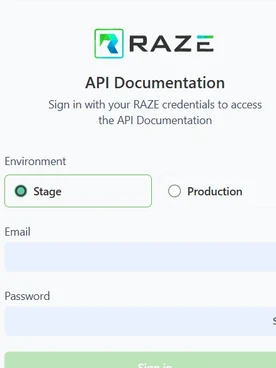
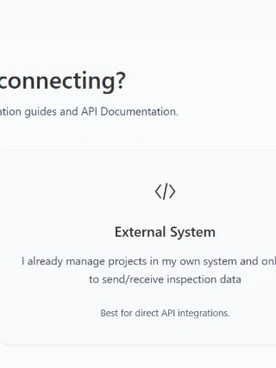
Sign in with your RAZE account, choose External System, and use the Explanation guide and API reference to build each call.
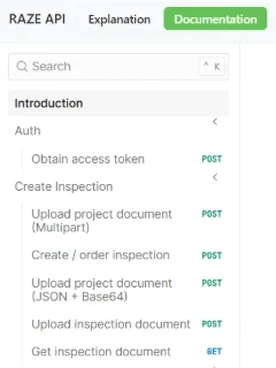
Get a token, order the inspection, attach documents and follow its status.
Guide 4
Request a token with your service account, send it on every call, and request a new one when it expires after an hour.
Guide 5
Send one create call with your project details, then save the project and inspection IDs RAZE returns for every later call.
Guide 6
Upload documents to the project as a file or as Base64 in JSON, then confirm the document is on the inspection.
Guide 7
Check the inspection from your system to follow its status, then download the report once it's ready.
Approve or reject submitted inspections, move to Production and know what support needs.
Guide 8
Record your decision on a submitted inspection from your own system, with the name of the person who made it.
Guide 9
Prove every call in Stage, switch all your settings to Production together, and keep the IDs each live inspection needs.
Guide 10
Check the token, environment and IDs first, then send RAZE support the details it needs to trace the call.
For field inspectors
For lenders
For vendors
For AI assistants
Ask RAZE AI for an instant answer from these guides, or send a request and the RAZE support team replies by email.
Ask RAZE AI.
Instant answers from these guides, any time.
Send a support request.
Tell us the product and guide; the form is here.
Call or email.