3 steps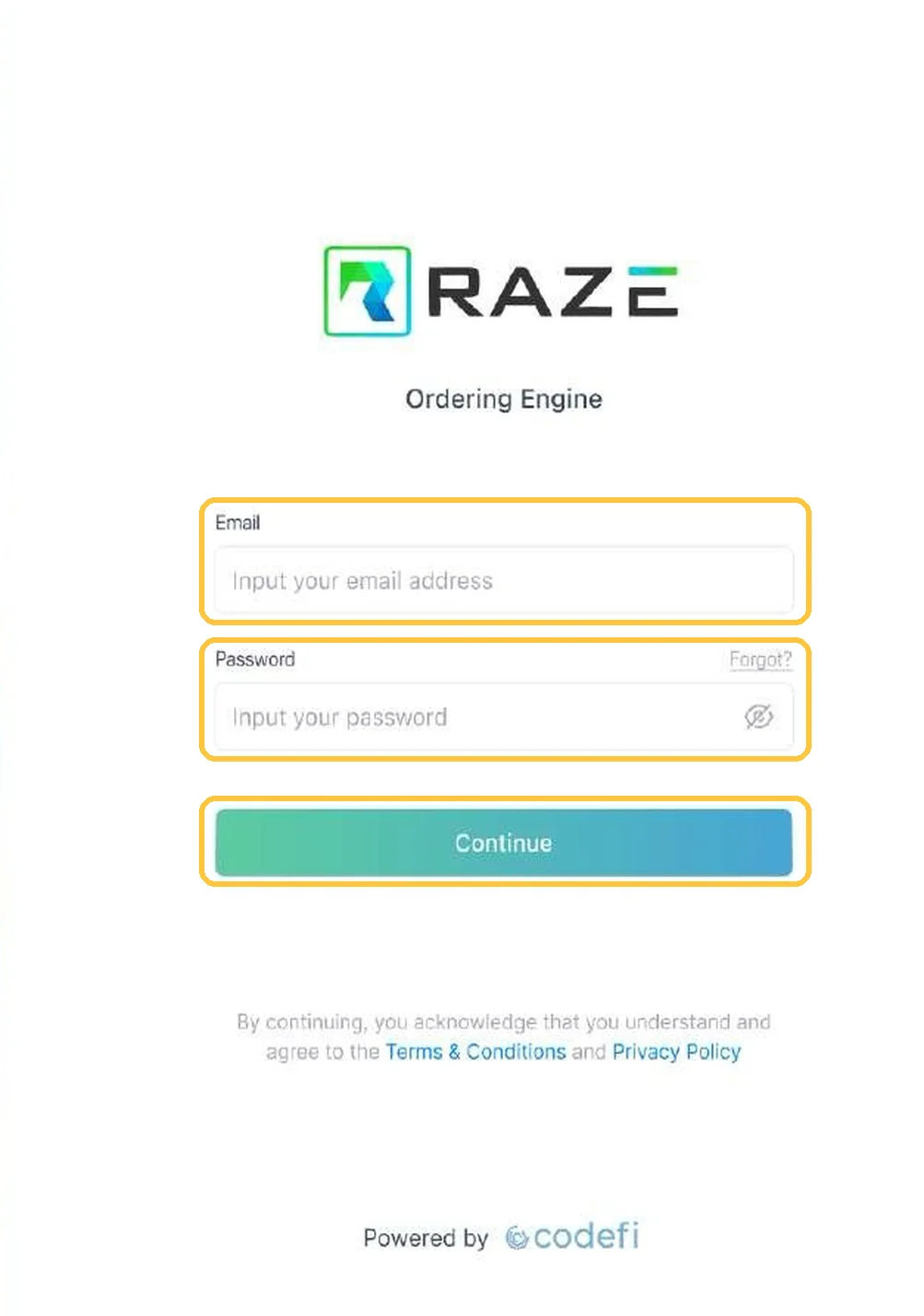
Guide 1
Getting Started with the Ordering Engine
Log in at order.getaraze.com, learn the three modules, and open any project in seconds.
Order and track draw inspections for your construction loans in one place.
15 guides · 4 stages
Runs on: Desktop and tablet. A web app you open in a browser; it is not built for phones.
Each guide is one step, in the order you work a construction loan, from the first login to an approved draw.
Log in, create the project, load the budget, and add the people who get notices.
Guide 1
Log in at order.getaraze.com, learn the three modules, and open any project in seconds.
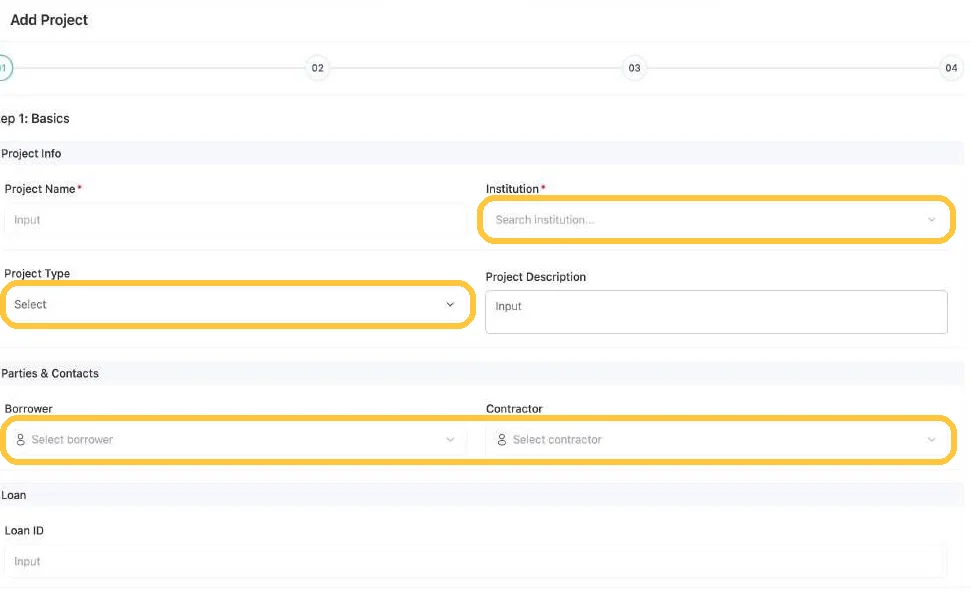
Guide 2
Create a construction project in four steps so every inspection you order has the right lender, parties, address, and budget.
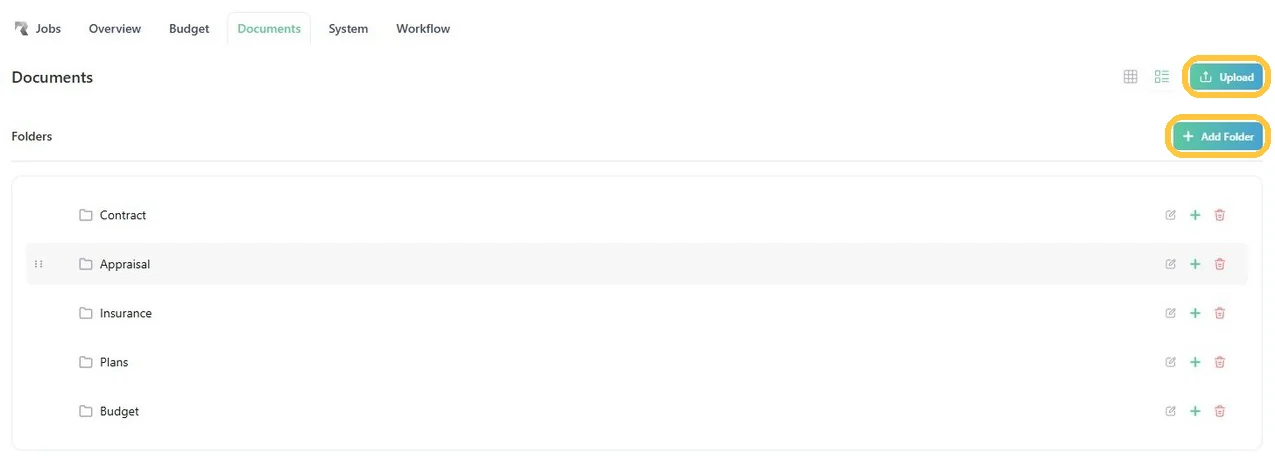
Guide 3
Every part of a project sits on six tabs: change a contact, upload documents, and find the Project GUID in a few clicks.
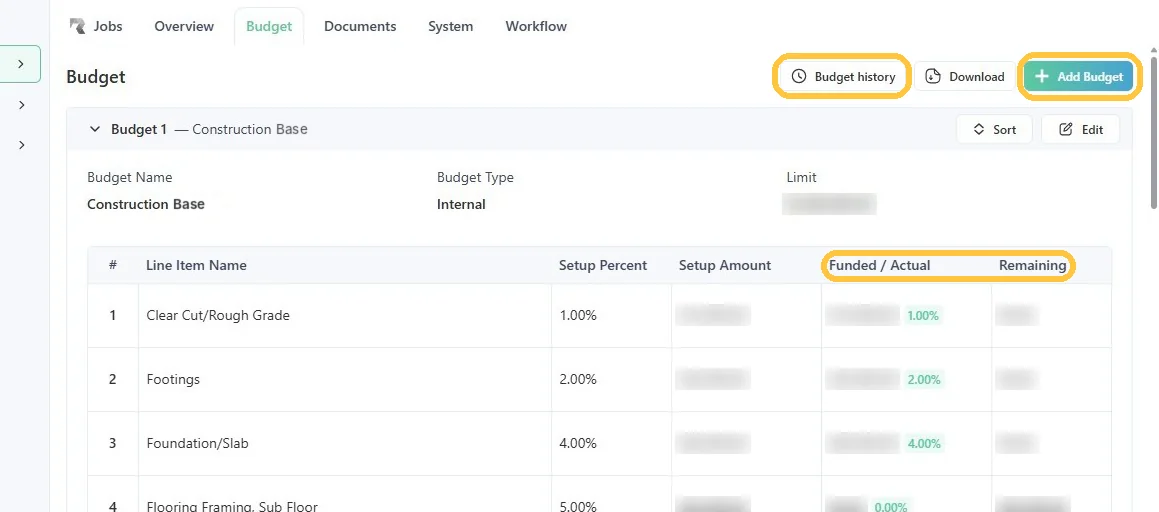
Guide 4
Build the budget inspectors draw against: line items that total exactly 100%, imported from a template or added by hand.

Guide 5
Keep borrowers, contractors, and inspectors current in People, because every notice goes to the contact details stored there.
Order each draw in a few clicks, or automate a recurring schedule.
Guide 6
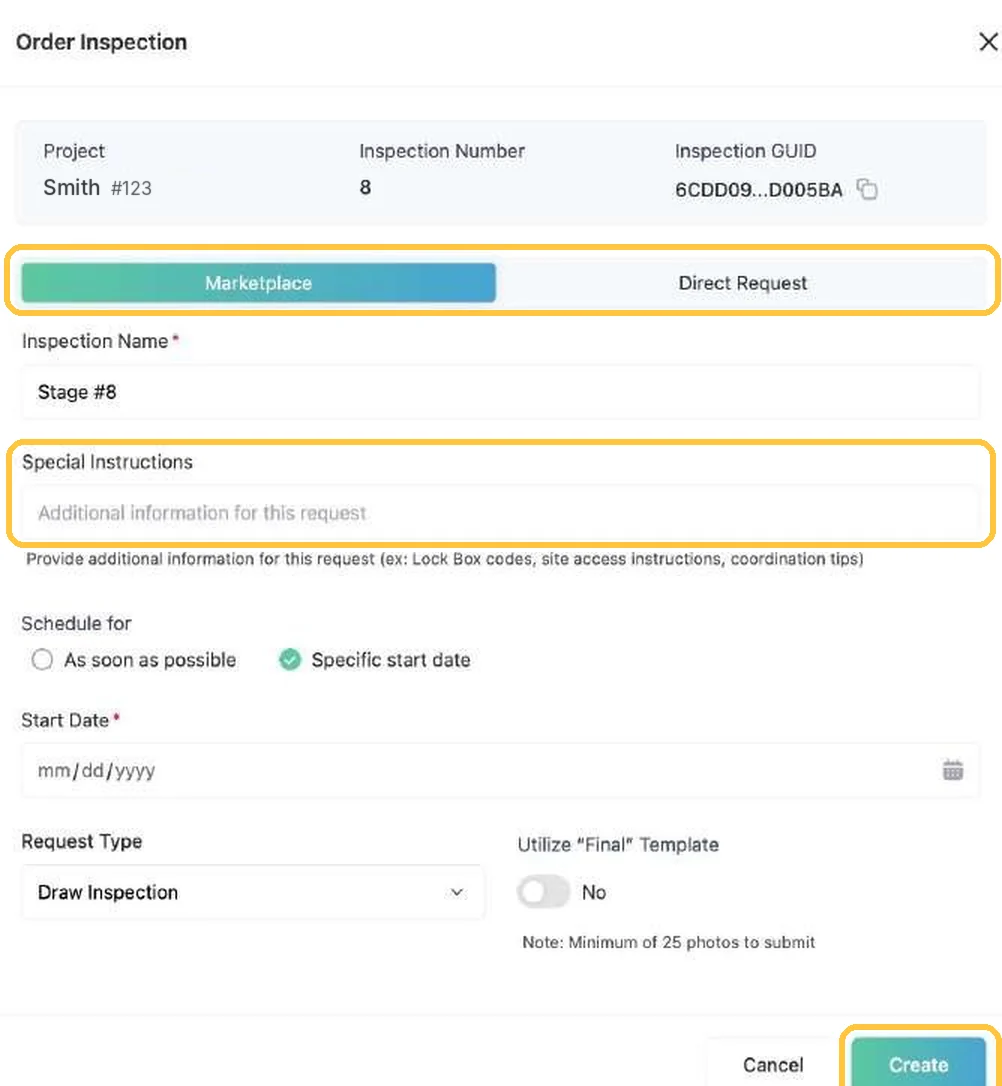
Order the next draw in three clicks with Quick, or build a new requirement with Custom, from the project's Jobs tab.
Guide 7
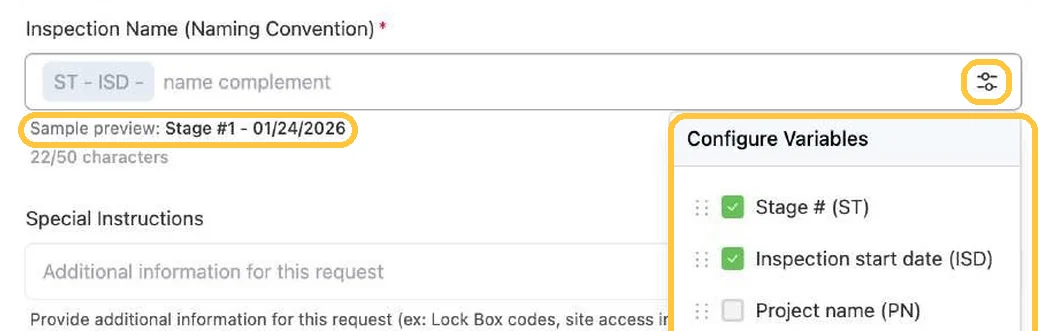
Name every inspection with the same variables so jobs are easy to find, and require 25 photos on the final draw.
Guide 8
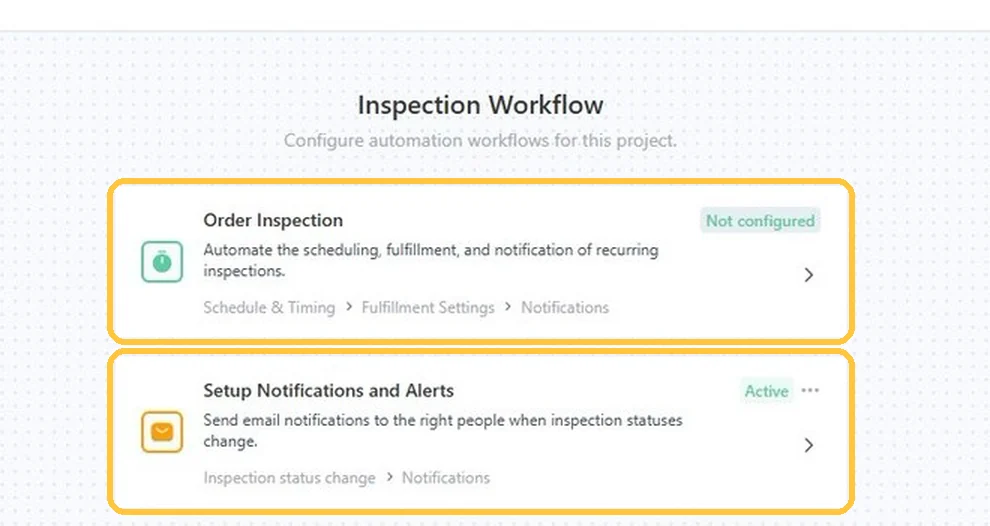
Set a draw schedule once and the Ordering Engine orders each inspection and emails the right people when statuses change.
Check the answers, photos, and draw percentages, then accept or reject.
Guide 9
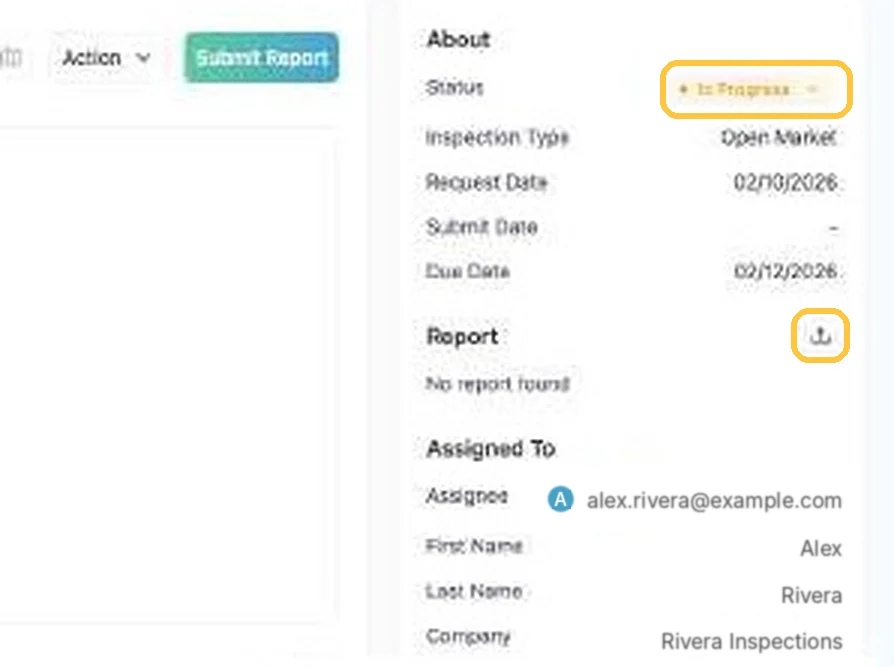
Every inspection moves from Lender Open to Submitted to your decision, and each status tells you what to do next.
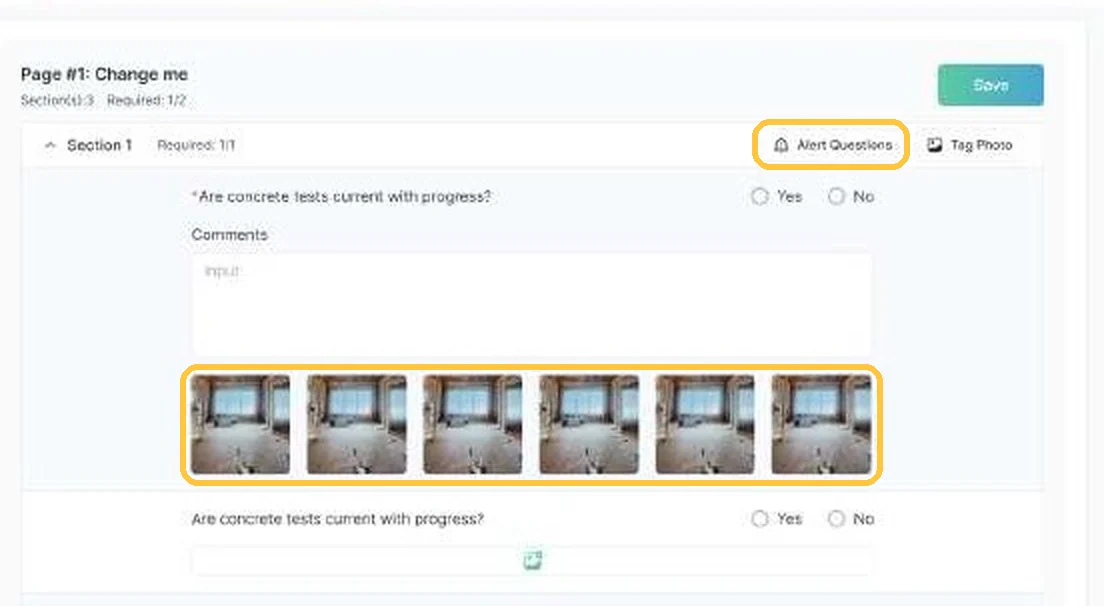
Guide 10
Open the job and check the questionnaire answers, draw percentages, and photos before you accept or reject it.
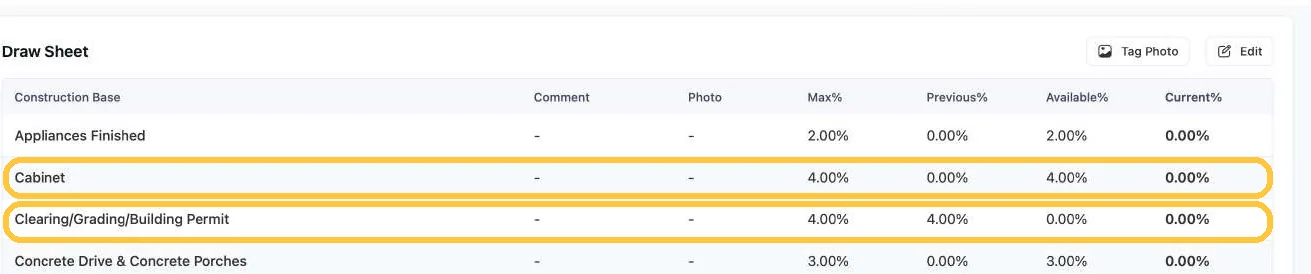
Guide 11
Four percentages on every budget line keep each draw within budget: Max, Previous, Available, and Current.
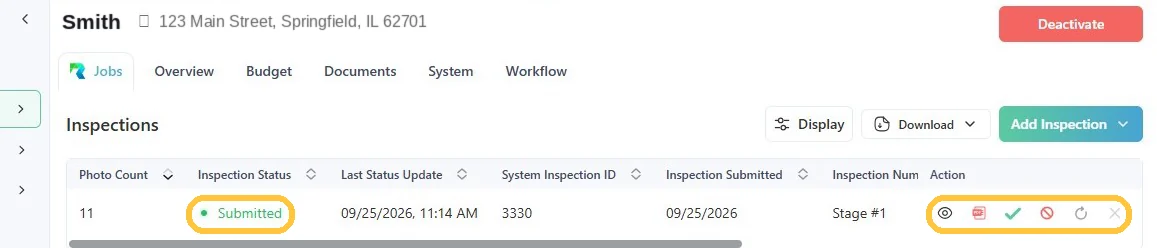
Guide 12
Accept or reject a submitted inspection in one click, and notices go to everyone involved automatically.
Run portfolio reports and let Ask AI draft orders for you.
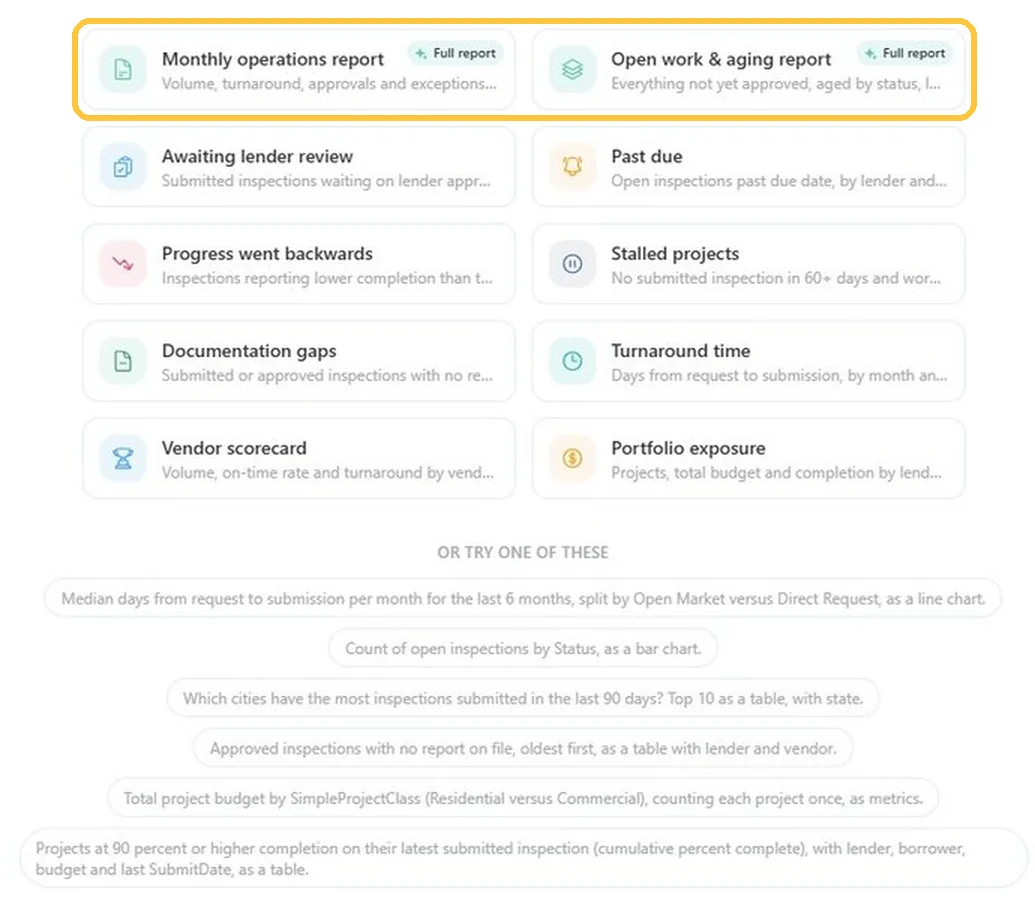
Guide 13
Run one of ten preset reports or ask a question in plain language to get metrics, a chart or table, and a summary.
Guide 14
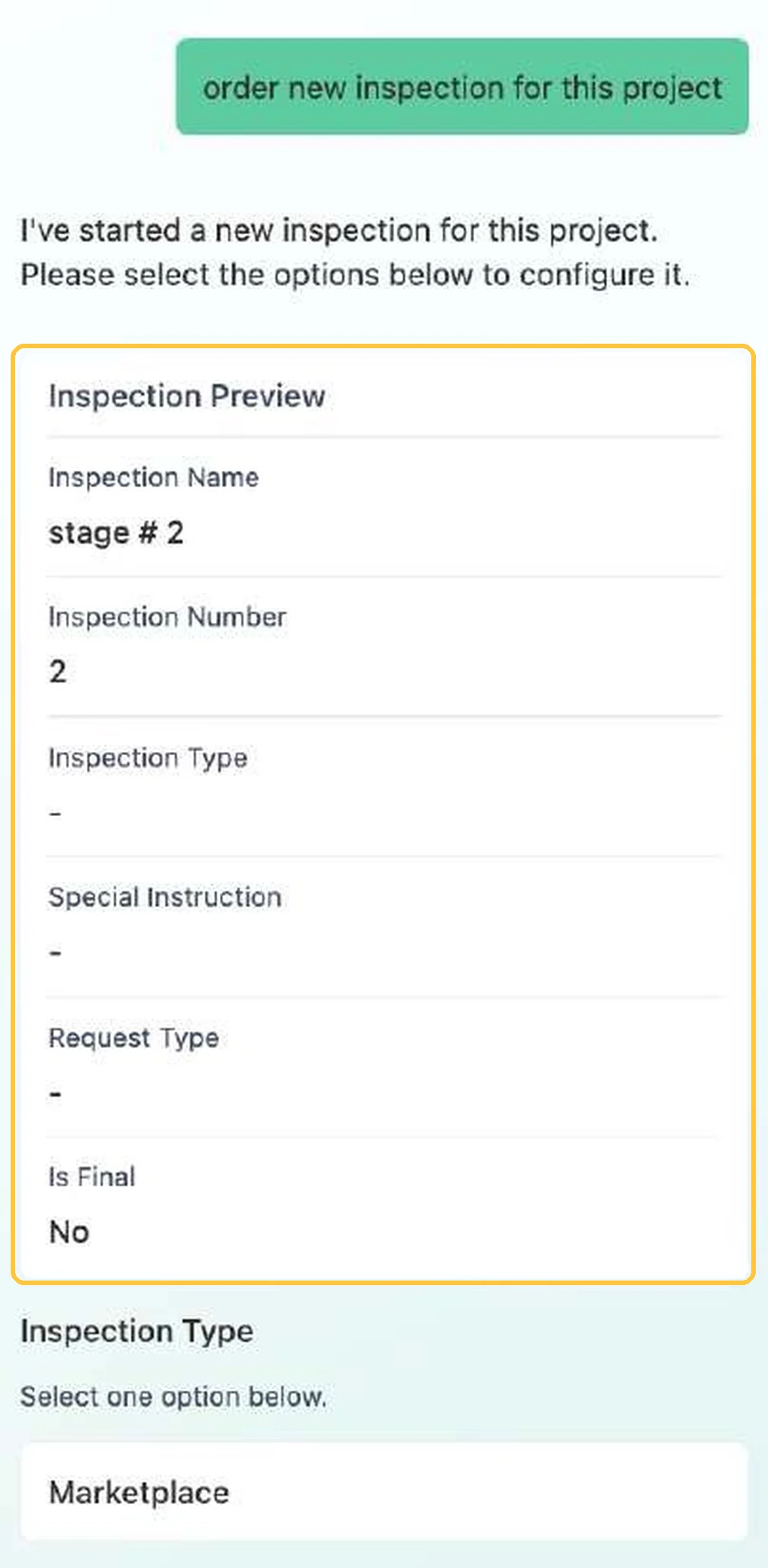
Type what you need in plain language, and Ask AI drafts it, shows a preview, and creates nothing until you confirm.

Guide 15
Every daily path, rule, and limit in the Ordering Engine on one page, plus how to get help fast.
For field inspectors
For vendors
For tech teams
For AI assistants
Ask RAZE AI for an instant answer from these guides, or send a request and the RAZE support team replies by email.
Ask RAZE AI.
Instant answers from these guides, any time.
Send a support request.
Tell us the product and guide; the form is here.
Call or email.