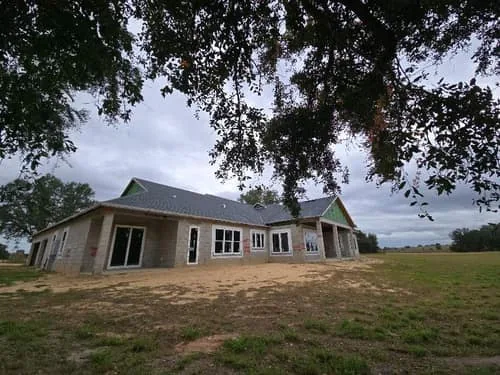
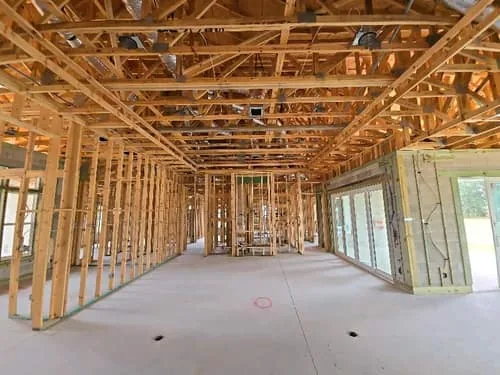
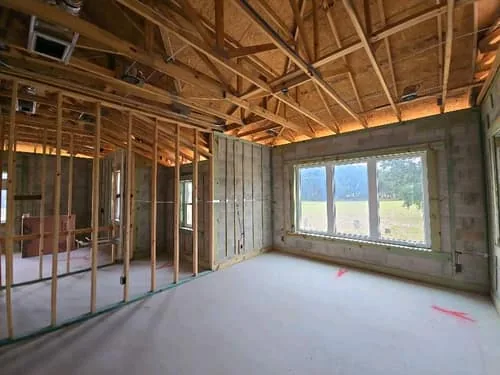
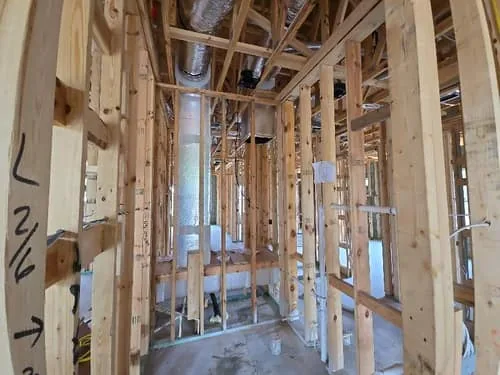
Projects
- Every project in one list, sorted by any column
- Jobs, Overview, Budget, Documents, System and Workflow tabs
- Residential and commercial projects in the same account
RAZE Ordering Engine
Create the project once, order each draw inspection in a few clicks, and review every report, photo and percentage in the same web workspace.
Desktop and tablet, in a browser
Already a customer? Sign inTrusted by lenders nationwide
$1B+
in monitored assets
51,000+
inspections submitted through the RAZE app
Any
U.S. address with draw inspection coverage
3,000+
applied vendors
As of October 2026.
“We used to spend hours coordinating inspection vendors by phone and email. With RAZE, we create the project once and the system handles scheduling, notifications, and tracking automatically. It feels like adding an operations team without adding headcount.”
How it works
Five steps your draw desk repeats on every loan, each shown on the Ordering Engine screen where it happens.
Who uses it
Three seats at a construction lender, and what each one does in the Ordering Engine on an ordinary day.
RAZE AI
AI helps your team create projects, order inspections, upload and update budgets, and run analytics.
People decide. Your reviewer approves or rejects each inspection, or your team turns on auto-approve; funding stays your decision.
AI-assisted. AI does not inspect properties or approve draws.
Analytics Hub. Ten preset reports and your own questions, answered as figures, tables and charts.
What's inside
Each card links to the step-by-step guide for that part of the product.
The Ordering Engine is a web app for desktop and tablet browsers. Your organization's administrator creates each user's account.
Fits what you run
RAZE integrates with existing Construction Loan Administration (CLA) workflows; it does not replace your LOS, core, servicing or CLA.
RAZE also integrates with Presidium, Codefi's construction loan administration platform. Codefi owns RAZE.
Who it's for
Ground-up, fix-and-flip and rehab draws, ordered one at a time or across the whole book.
Add draw inspections beside your CLA, LOS and core. RAZE replaces none of them.
Order in the Ordering Engine, by API, or inside Presidium, the CLA platform from Codefi, which owns RAZE.
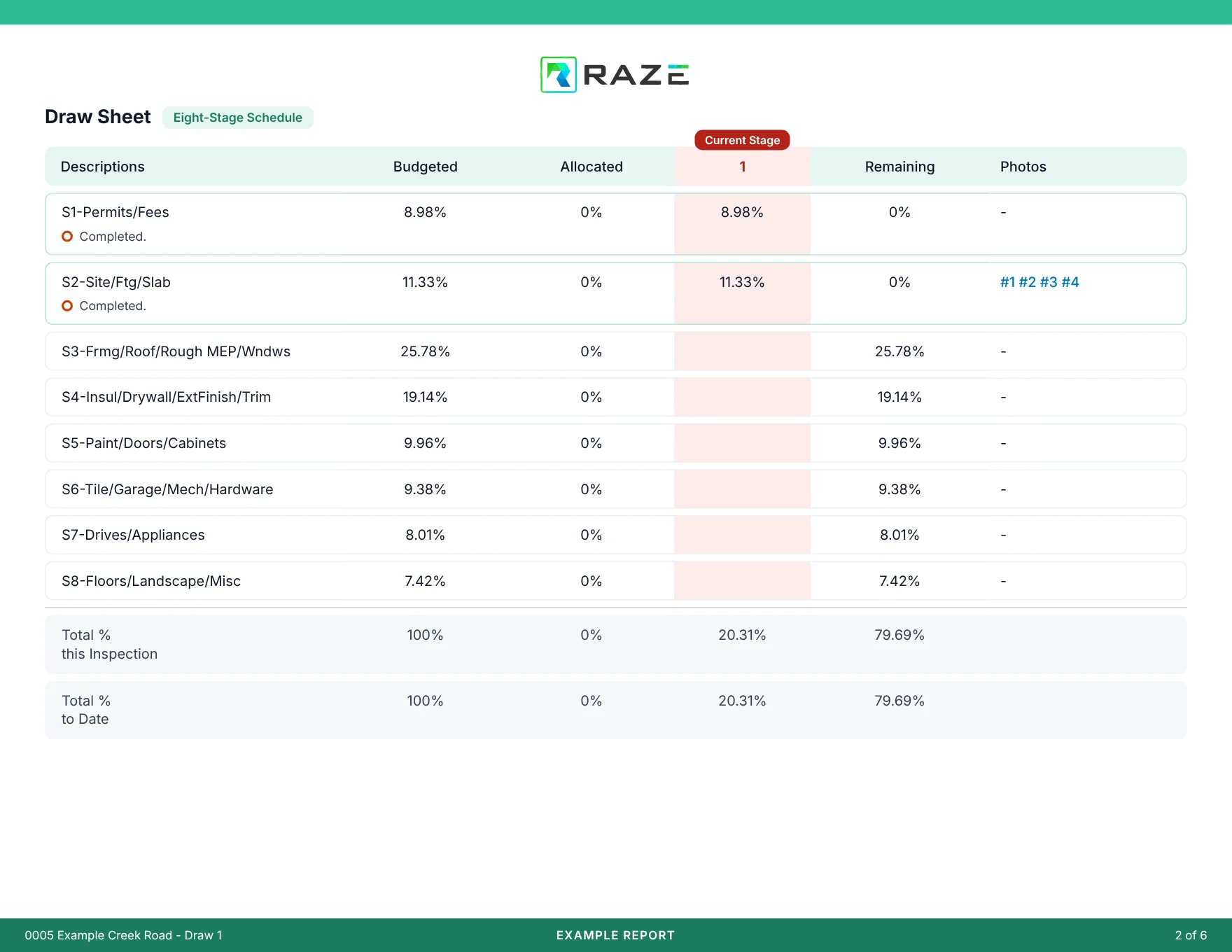
The report
Each report is built once to your standard and used for every inspection after that.
Pricing
No minimums, billed monthly.
Marketplace
$125
per inspection, single-family
RAZE sends a background-checked inspector and reviews the report.
Direct Request
$25
per request
You send your own inspector through the same workflow and report.
Rates are for residential draw inspections and are subject to a RAZE master services agreement. Some programs include a one-time implementation fee, quoted before you sign. Contact us for commercial and portfolio pricing.
Common questions
The RAZE Ordering Engine is the web app construction lenders use to create projects, order draw inspections, follow each one by status and review the report before a decision. It runs in a desktop or tablet browser, with nothing to install.
Draw coordinators and loan administrators order and track inspections. Operations leads read the portfolio in Analytics. Credit, risk and audit teams check the budget history, the photos and the report behind a draw. User groups control who can use each part of the account.
Open the project's Jobs tab and choose Add Inspection. Quick repeats the last order on the project, and Custom builds a new one: Marketplace or Direct Request, the inspection name, the schedule and the request type. A draw schedule on the Workflow tab can place recurring orders for you.
On a Marketplace order the lender orders and RAZE assigns the inspector. On a Direct Request the job goes to the inspector you choose, through the same workflow and report. You pick one on each order.
No. RAZE integrates with existing Construction Loan Administration (CLA) workflows and sits beside your LOS, core and servicing systems. A lender that runs its own loan system can order through the RAZE API instead of the Ordering Engine.
No. AI does not inspect properties or approve draws. In the Ordering Engine, AI helps your team create projects, order inspections, upload and update budgets, and run analytics. Your reviewer approves or rejects each inspection, or your team turns on auto-approve; funding stays your decision.
Yes. Every job carries a status, from Lender Open through Submitted to Lender Approved or Lender Rejected, and the Inspection Workflow sends email notifications when an inspection is created and when a report is submitted.
The Ordering Engine is a web app for desktop and tablet browsers; it is not built for phones. Inspectors capture on site in the RAZE Mobile App for iPhone and Android.
Start with the short Get Started form and tell RAZE about your draw program. Inside your institution, an administrator creates each user's account, so there is no self sign-up, and each person signs in with their own email and password.
Keep reading
Step-by-step guides, from the first project to Analytics.
What a RAZE draw inspection covers, and the report it returns.
Where the inspector completes and submits what you ordered.
Residential draw inspection rates in one place.
Ready to start
Tell us about your draw program on a short form. A walkthrough is there if you want one.