RAZE Inspector Portal
The Inspector Portal for Draw Inspection Vendors From Assigned Job to Submitted Report
Inspectors and inspection companies work every assigned job in a browser: the questionnaire, the draw sheet, the photos, then the report the lender reviews.
Desktop and tablet, in a browserAlready approved? Sign in

- 3,000+
- applied vendors
- 51,000+
- inspections submitted through the RAZE app
- 1M+
- photos captured
- Any
- U.S. address with draw inspection coverage
As of October 2026.
How it works
One job, start to submitted report.
Six views an inspector or a manager works in, shown the way the product draws them.
Step 1 of 6
Your queue, as a list or on a map.
Jobs shows every inspection assigned to you or open to your company, with its status.
- Search by name, ID or date
- Advanced Filters by lender, status and more
- A pin on the map opens the job
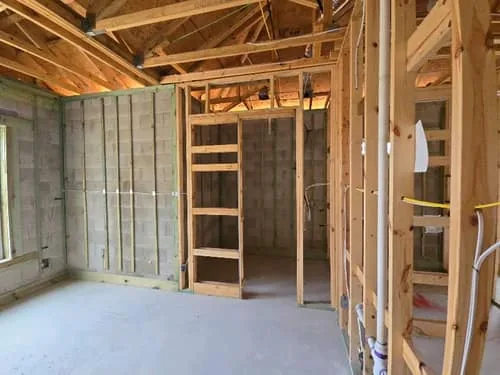
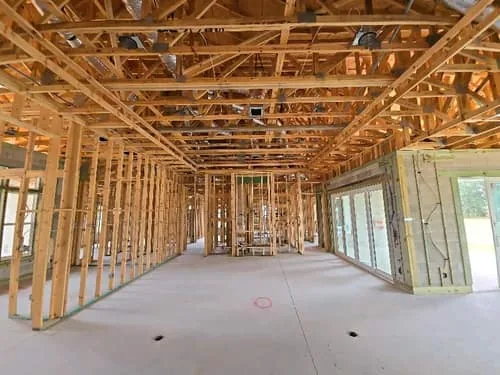
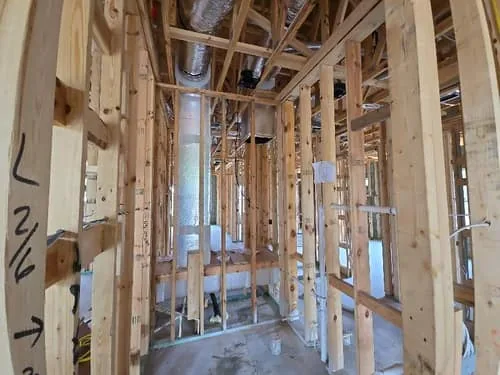
Step 2 of 6
Answer page by page.
Counters show what is required and what is answered on every page.
- Mark an answer Alerted for the lender
- Tag photos to the question they support
- Submit stays blocked while a required answer is empty
Step 3 of 6
Enter progress on the lender's own lines.
Each row is a budget line the lender set up, and you enter Current% within what is available.
- Max%, Previous%, Available% and Current% on every line
- A comment on any line



Step 4 of 6
Photos arrive from the site.
Photos taken in the RAZE Mobile App arrive with their time, place, comments and tags.
- Upload photos taken another way
- An AI comment tool suggests photo comments on site
- The inspector accepts or edits every suggestion
Step 5 of 6
Preview, then submit.
Generate the report, read the PDF, then send it to the lender with Submit Report.
- The lender is notified in the Ordering Engine
- Rejected? Set it back to In Progress, fix it and resubmit
Step 6 of 6
Run every inspector in your company.
People lists each inspector with approval status and workload, for managers and administrators.
- Authorized lenders and work locations for each inspector
- Assignments, devices and a settings audit log
- Role-based access, activity logging and documented data handling
Commercial
Commercial draws, on the same portal.
A firm that licenses RAZE runs its own inspectors on it.
1 of 4
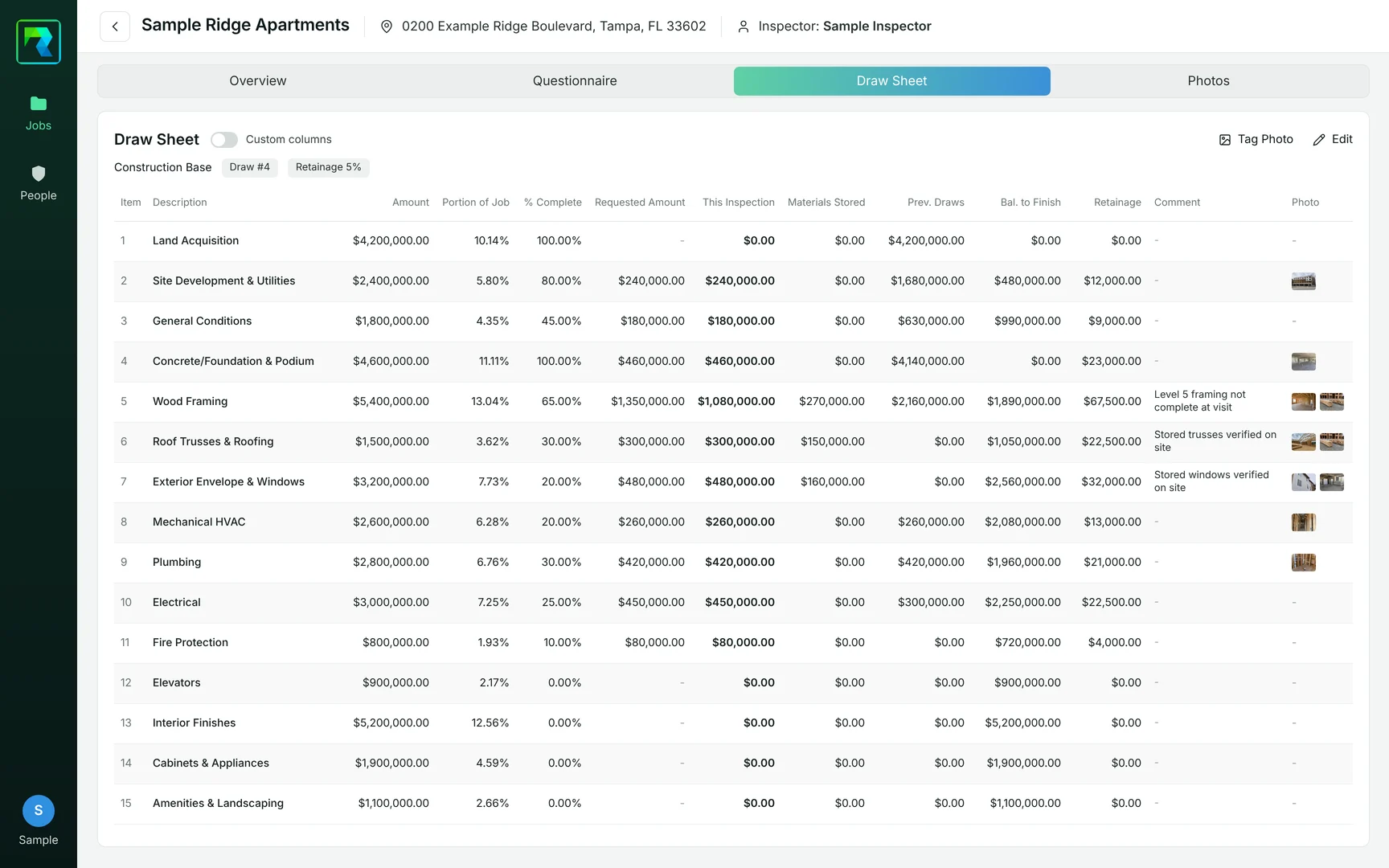
The continuation sheet, on screen.
In the Inspector Portal, the inspector enters this inspection, materials stored and retainage on each line, with a comment and photos.
- A custom-columns view shows the column set your firm chose
2 of 4
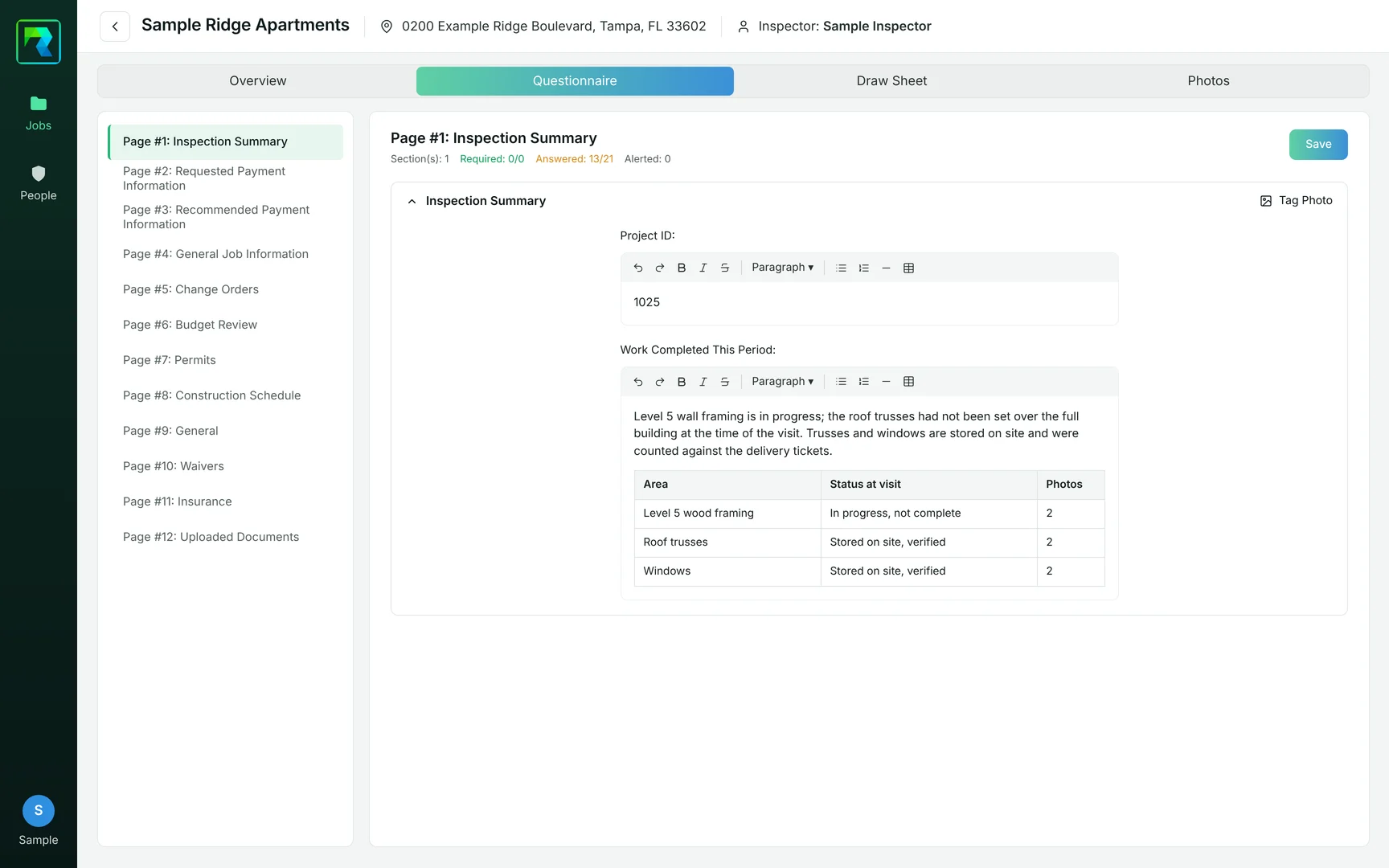
The report, written in your pages.
Narrative report pages carry tables, bullets and headings in the firm's own sections.
- Each page counts what is required and what is answered
- Tag photos to a section of the narrative
3 of 4
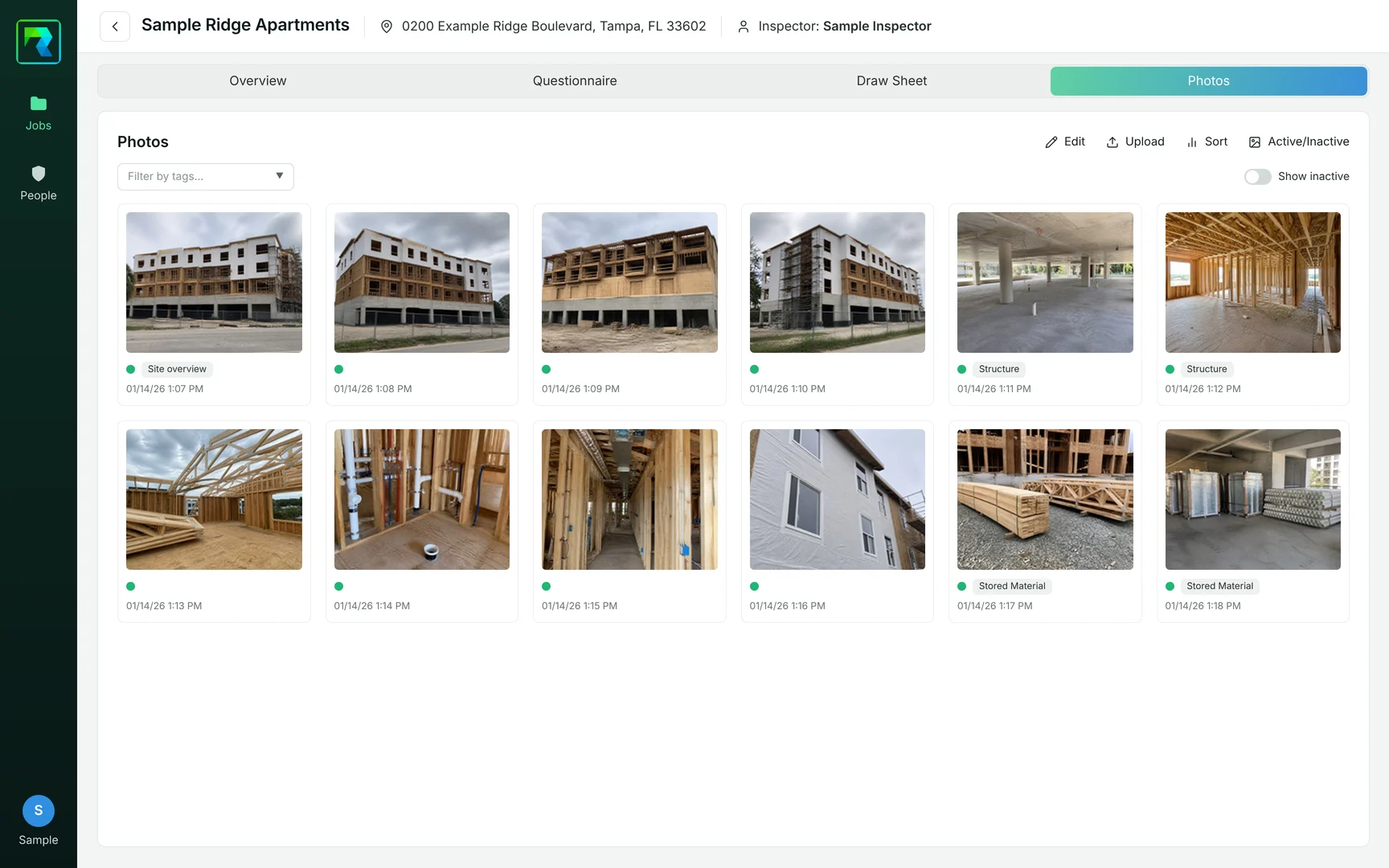
Every photo, in or out of the report.
Photos are marked active or inactive: inactive photos stay with the job and out of the report.
- Photos taken in the RAZE Mobile App arrive with their time, place, comments and tags
4 of 4
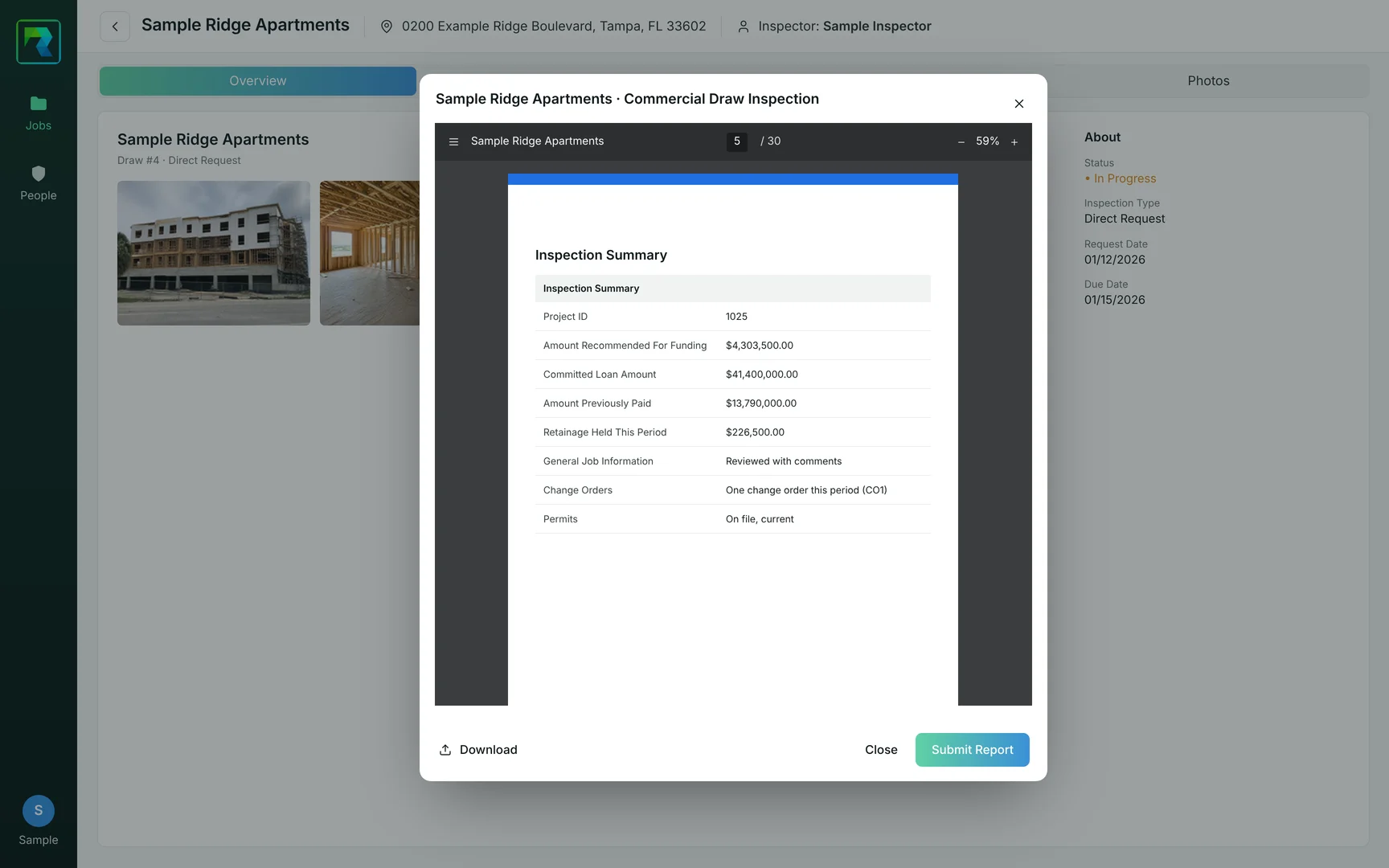
Preview, then submit.
The report is previewed as a PDF before it is submitted.
- Submitting sends the report to the Ordering Engine, where the reviewer is notified
Common questions
Inspector Portal questions.
The RAZE Inspector Portal is the web app where inspectors and inspection companies see their assigned draw inspections, complete the questionnaire, draw sheet and photos, preview the report and submit it to the lender. It runs in a desktop or tablet browser.
They work together. The RAZE Mobile App captures the inspection on site on iPhone and Android. The Inspector Portal is a web app for desktop and tablet browsers, where you review the questionnaire, draw sheet and photos, preview the report and submit it.
The job shows Lender Rejected, and RAZE notifies the inspector in the RAZE app and by email. Set the status back to In Progress, fix what the lender asked for and submit again. No new order is needed.
Yes. A firm that licenses RAZE for commercial work runs its own inspectors on the portal, with a commercial draw sheet and narrative pages set up for the firm's report. Commercial pricing is on the RAZE commercial pricing page.
Apply on the RAZE Vendor Application page, which lists the screening steps and requirements. Once approved, you sign in to the Inspector Portal with your own credentials.
Ready to start
Run your inspections in the Inspector Portal.
Apply to the Vendor Network, then work each job in the portal and the RAZE Mobile App.