RAZE Mobile App 1.6.1: AI Photo Comments
RAZE Mobile App version 1.6.1 is live on the App Store and Google Play. It brings RAZE AI Photo Comment Assistance to the Photo Gallery: tap one button and RAZE AI drafts a comment that describes what's in the photo.
Photo comments are the part of a draw inspection that slips first. On photo 40 of 60, "front" is easier to type than what the lender needs to see. Now the first draft is written for you, and you decide what gets saved.
Update now
Open the App Store or Google Play, search for RAZE (Codefi), and tap Update. If automatic updates are on, you may already be running 1.6.1.
What's new in 1.6.1
AI-drafted photo comments
Keep or discard every draft
Off-site photo flag
How it works
In Photo Gallery, tap Add comments under a photo. A sparkle button now sits next to the green send arrow. Tap it, and RAZE AI reads the photo and drafts a short list of what it shows, such as "Tile Work, Tub Set, Backer Board, Thinset, Wall Tile Panels" for a bathroom in progress.
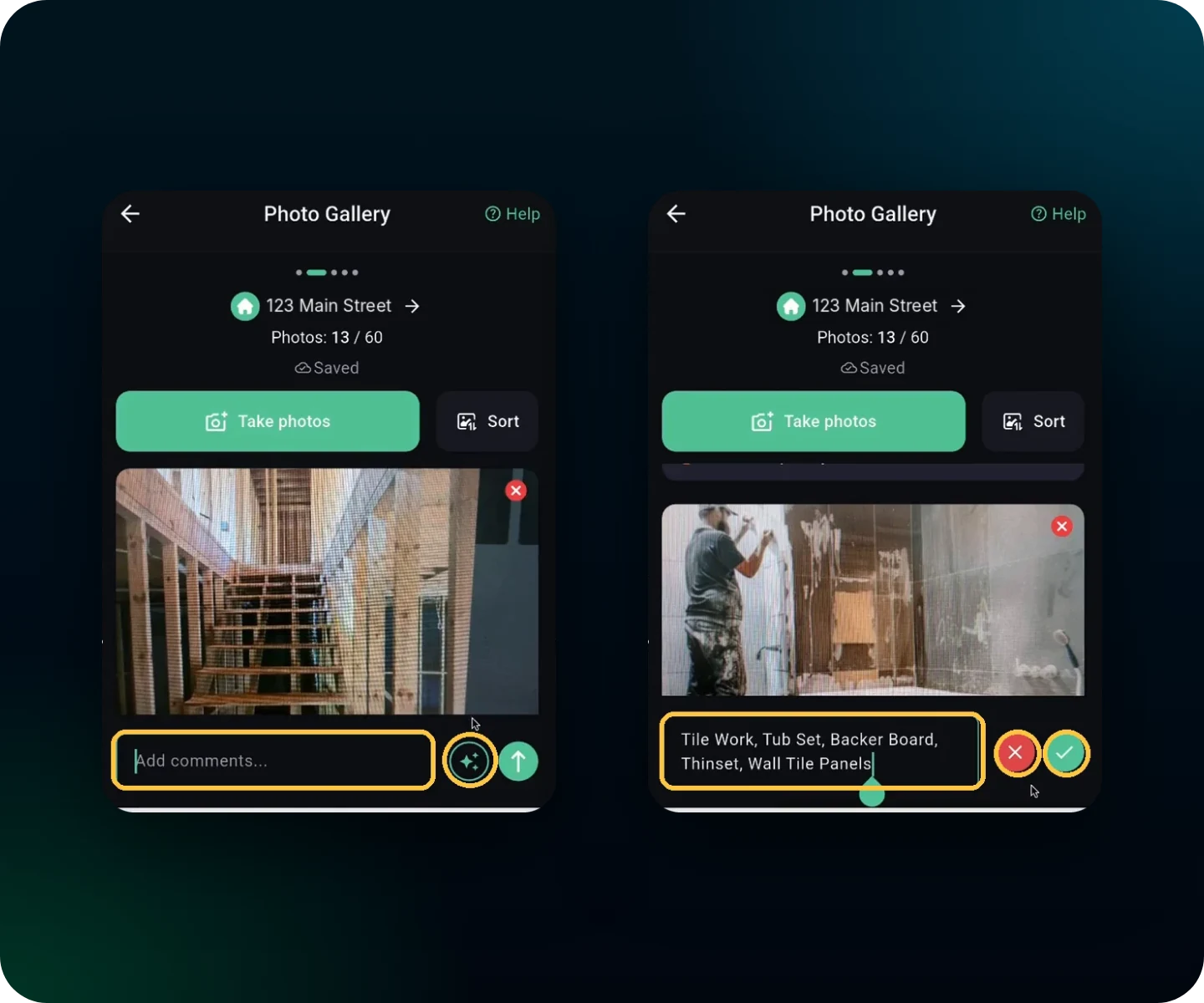
Tap the sparkle button (left), then keep the draft with the check or discard it with the X (right).
Three taps from photo to comment
Tap the sparkle button
Open Add comments under any photo in Photo Gallery and tap the sparkle button. RAZE AI drafts the comment.
Keep it or discard it
Tap the green check to keep the draft, or the red X to throw it out. Discarding leaves your original comment exactly as it was.
Add your detail and send
Add what only you know from the site, then tap the green send arrow. The status reads "Saved" and the comment sits under the photo.
RAZE AI suggests. You approve.
Nothing is saved until you tap send. The draft describes what's visible in the photo; percent complete, quality and your recommendation stay your call.
It flags photos that aren't the site
Every inspector has a stray shot in the gallery: a dashboard, a desk, a coffee mug. When the photo doesn't show the inspection site, RAZE AI doesn't invent a description. The draft reads "Not related to inspection site." so you can delete the photo before you sync.
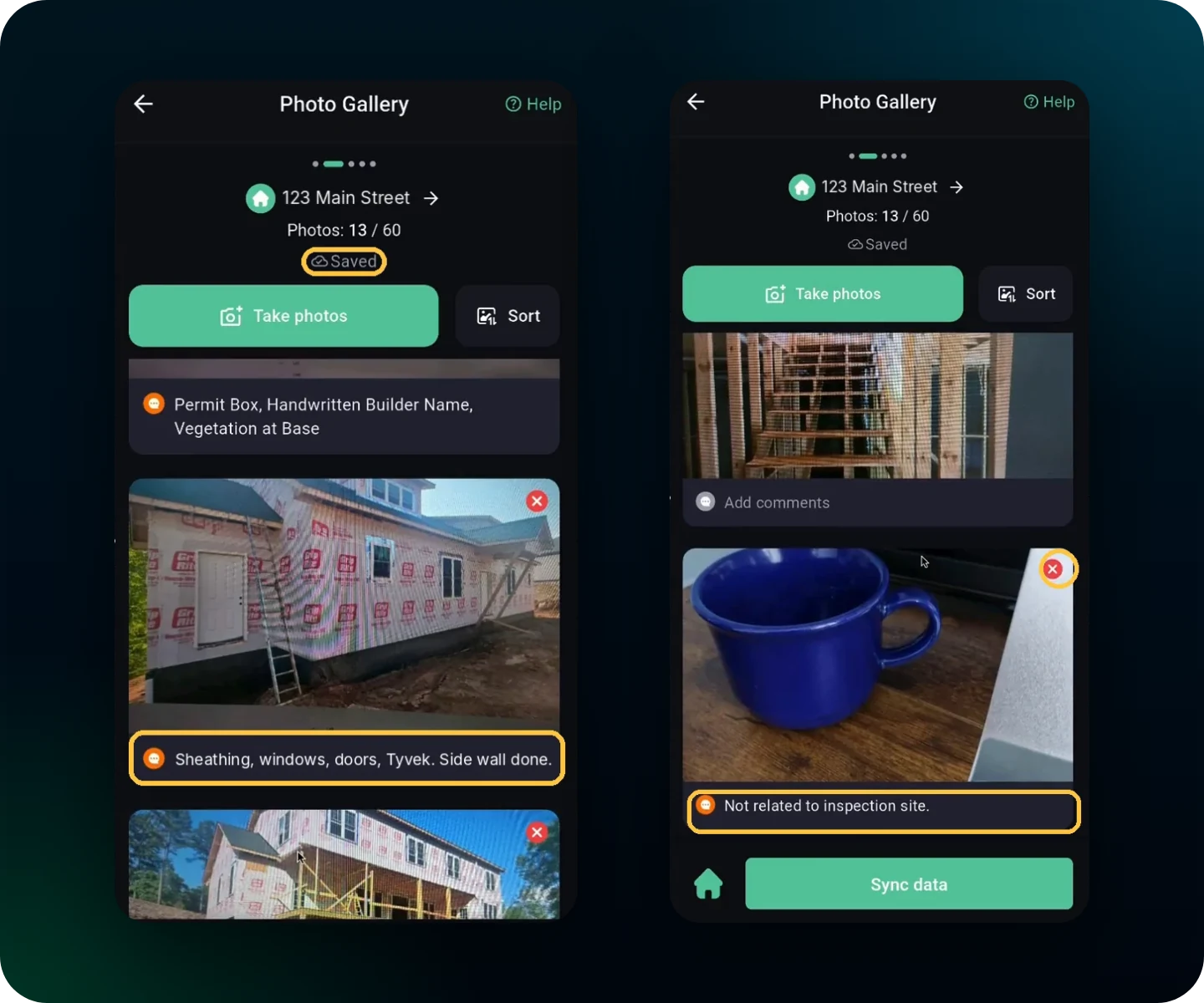
A kept draft with the inspector's own words added (left), and an off-site photo flagged instead of described (right).
Why it matters for lenders
A draw report is only as useful as its photo captions. When every photo is labeled with what it shows (permit box, sheathing, windows, Tyvek), a reviewer can match the photo set to the draw request line by line instead of guessing what a picture is meant to prove.
Every draft starts as a plain list of what the photo shows, so captions read more alike from one inspector to the next. The inspector still reviews every one before it reaches your report.
Photo Comment Assistance at a glance
AI-drafted comments
A sparkle button in each photo's comment field drafts a comment with RAZE AI.
Keep or discard
A green check keeps the draft; a red X discards it and restores the original comment.
Edit before sending
A kept draft stays editable, by typing or by talk-to-text, until you tap send.
Off-site photo flag
Photos that don't show the inspection site are flagged "Not related to inspection site."
Frequently asked questions
Step-by-step instructions with screenshots are in the RAZE AI Photo Comment Assistance guide. Prefer to talk your comments? See Using Talk-to-Text. Missed the last release? RAZE Mobile App 1.5.1 added Waze, Google Maps and Apple Maps.
Update to 1.6.1 today
Get the latest version and try the sparkle button on your next inspection.
Not on RAZE yet? Apply to join the RAZE Inspection Network and start picking up jobs from the marketplace.