RAZE Mobile App 1.5.1: Waze, Google Maps, Apple Maps
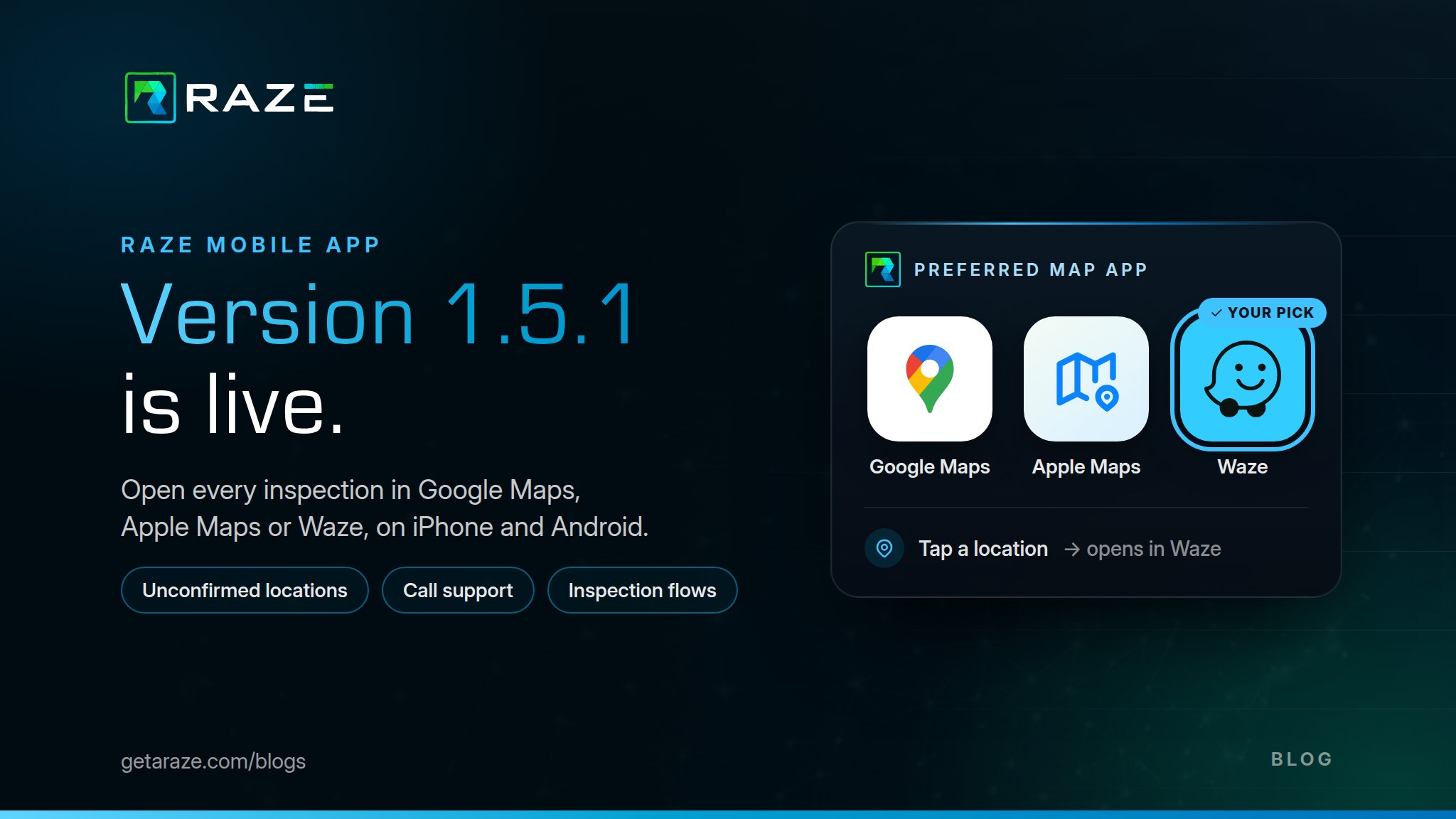
RAZE Mobile App version 1.5.1 is live on the App Store and Google Play. This release is all about the field: get to the property in the navigation app you already trust, see jobs that used to stay hidden, and reach support with the right reference in hand.
Here's what changed, and how to put it to work on your next inspection.
Update now
Open the App Store or Google Play, search for RAZE (Codefi), and tap Update. If automatic updates are on, you may already be running 1.5.1.
What's new in 1.5.1
Preferred map app
Unconfirmed locations
Call support with your inspection ID
Pick your map app
Every inspector has a favorite navigation app, and now RAZE works with yours. Settings has a new Preferred map app option: choose Google Maps, Apple Maps, Waze, or keep System default. From then on, tapping an inspection's location opens it in the app you picked.
Use Waze for live traffic and crowd-reported hazards on the drive to the site, Google Maps to check Street View before you pull up, or Apple Maps if that's what you already use on your iPhone.
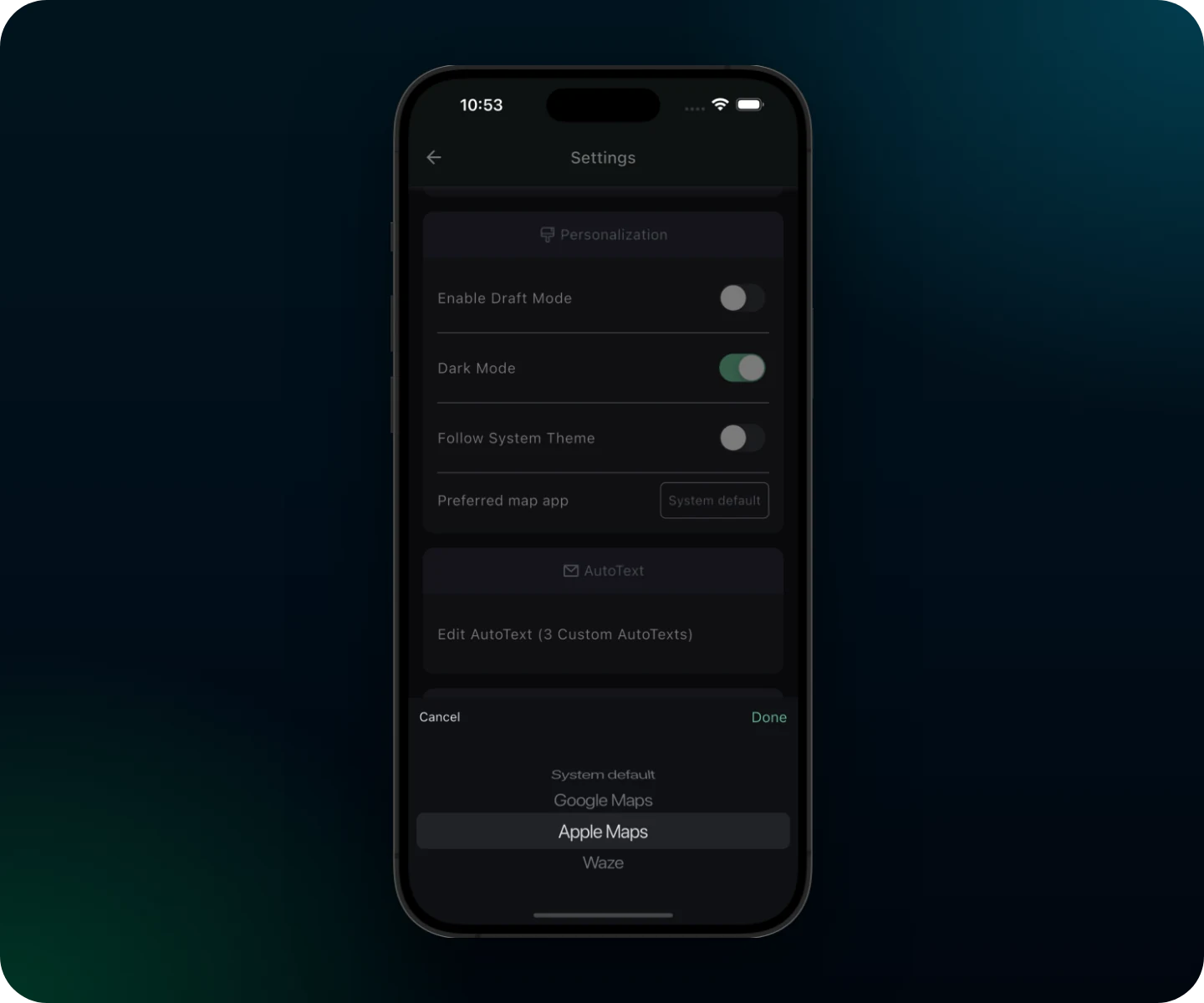
The Preferred map app picker in RAZE Mobile App Settings. Pick once, and every inspection location opens there.
Set it up once
Open Settings
In the RAZE Mobile App, go to Settings.
Choose your preferred map app
Pick System default, Google Maps, Apple Maps or Waze.
Tap any inspection location
The location opens in the app you chose. You can change it any time in Settings.
App not installed? You're still covered.
If the map app you picked isn't on your phone, RAZE lets you know and opens the location in your system default map app instead.
Unconfirmed locations
Some inspections come in before their coordinates are confirmed. Until now, those jobs were hidden from the marketplace. In 1.5.1 they appear with an Unconfirmed badge, so you can see them and act on them instead of never knowing they existed.
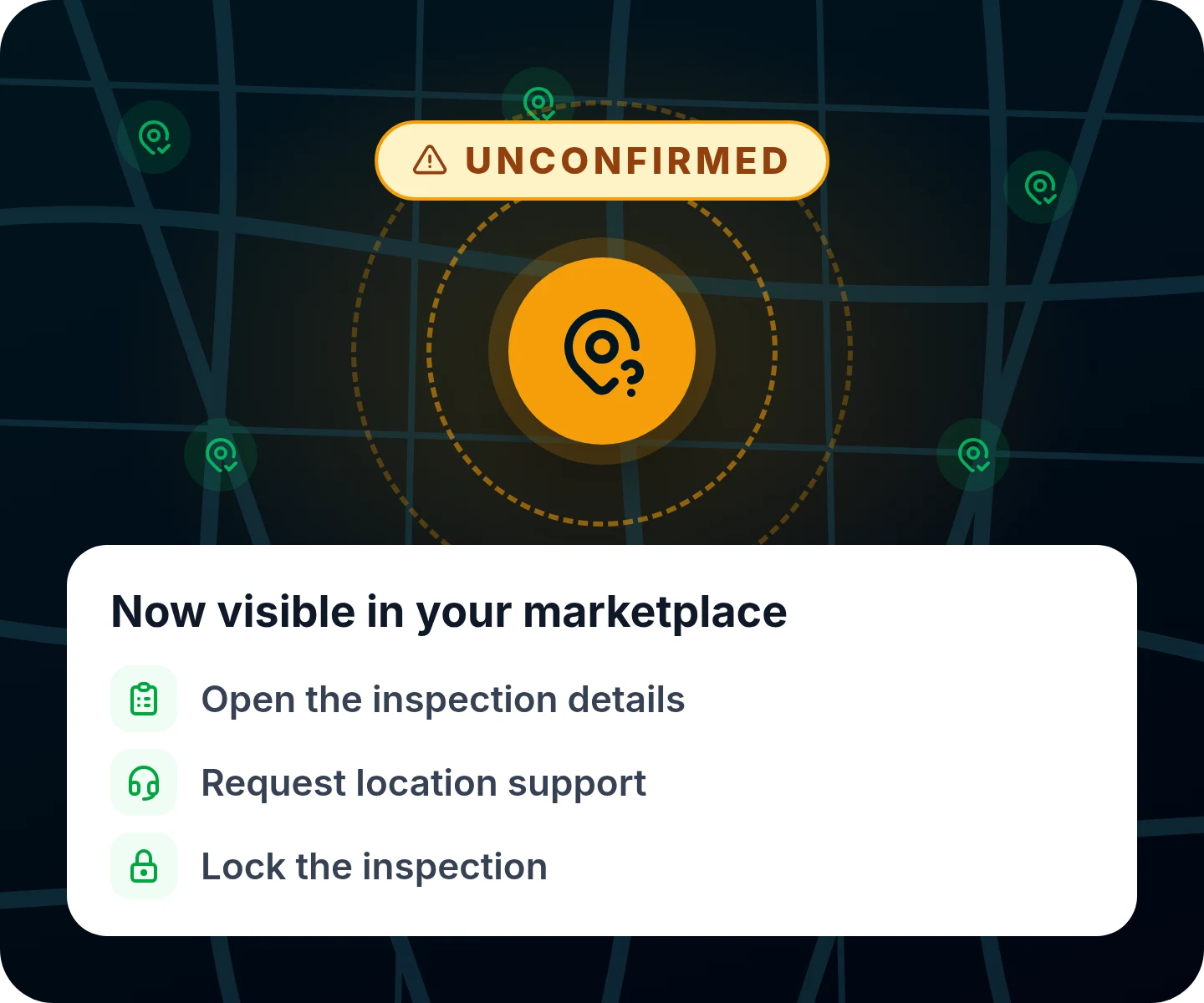
In this illustration, the Unconfirmed badge means the coordinates haven't been confirmed yet, not that the job is off-limits.
What you can do with an Unconfirmed job
Open · Request support · Lock
The badge flags the location. It doesn't take the job off the table.
Open it
View the inspection details.
Get help
Request support for the location.
Lock it
Lock the inspection.
Fixed
The loader no longer gets stuck after you lock one of these inspections.
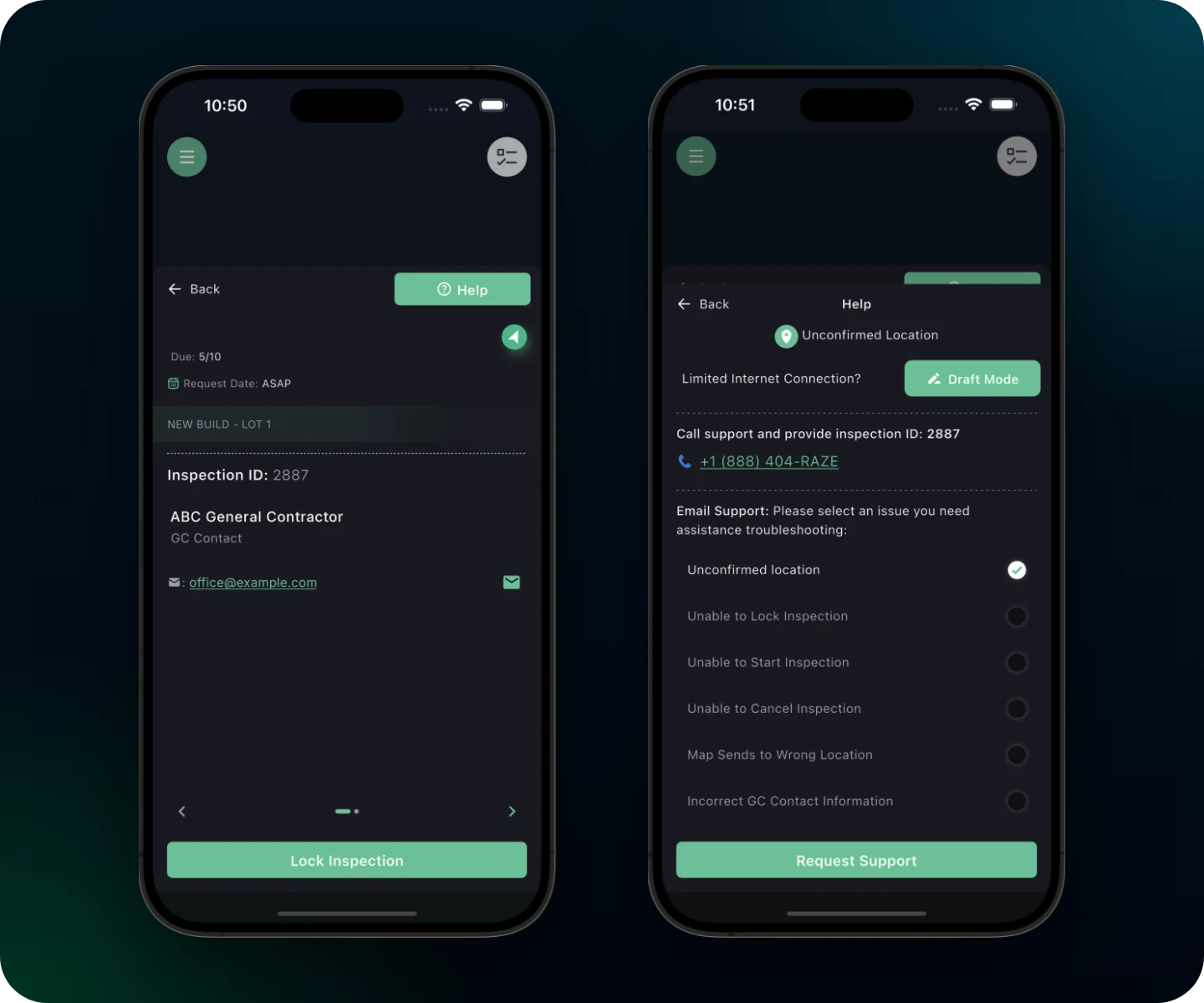
An Unconfirmed job in the app: open the details and lock the inspection (left), or request location support from Help (right).
Call support
When something's off at a property, you want support on the line fast, and you want them looking at the right job. The Help dialog inside each inspection now has a Call support option that includes the inspection ID, so you call in with the right reference.
The Call Support screen in the Help menu is simpler, too: it shows one number, the RAZE Mobile App Support line.
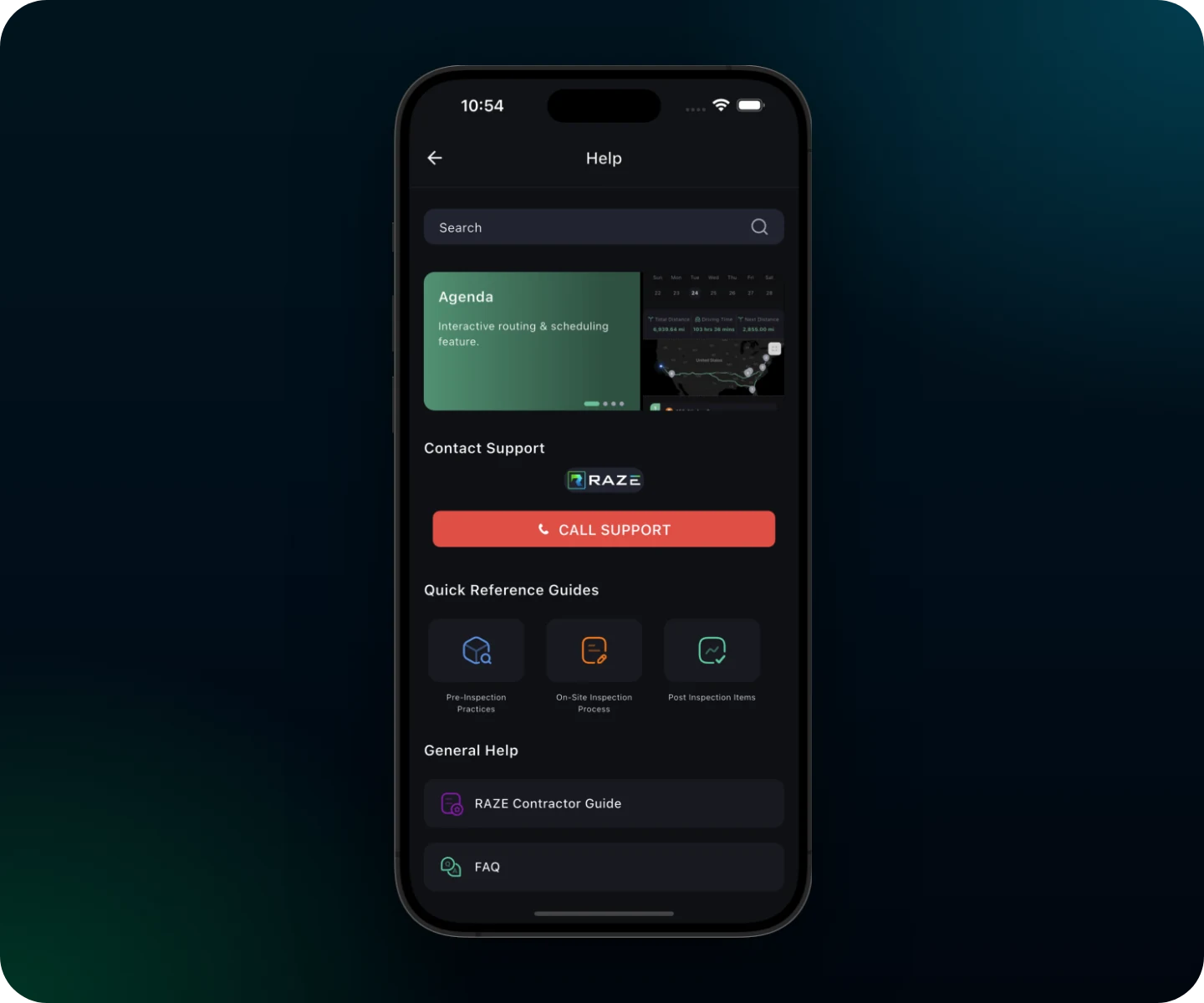
The Help menu in the RAZE Mobile App, with Call Support at the top and quick reference guides below.
RAZE Mobile App Support, one tap away
The line is +1 (888) 404‑RAZE, which dials (888) 404‑7293. Save it to your contacts before your next inspection.
Inspection flows and fixes
Assessments, field reports and inspections with or without a drawsheet now each follow the correct in-app flow. This release also includes a handful of smaller UI fixes.
Everything in 1.5.1
Preferred map app
Open inspection locations in System default, Google Maps, Apple Maps or Waze.
Unconfirmed badge
Inspections without confirmed coordinates now appear in the marketplace.
Unconfirmed jobs
Open the details, request location support and lock the inspection.
Call support
The inspection Help dialog has a Call support option that includes the inspection ID.
One support number
The Help menu's Call Support screen shows the RAZE Mobile App Support line, +1 (888) 404-RAZE.
Inspection types
Assessments, field reports and inspections with or without a drawsheet follow the correct in-app flow.
Loader fix
The loader no longer gets stuck after you lock an Unconfirmed inspection.
UI fixes
This release fixes numeric input formatting, the past-inspection layout and the unapproved-account screen.
Frequently asked questions
Update to 1.5.1 today
Grab the latest version, set your preferred map app, and you're ready for your next job.
Not on RAZE yet? Apply to join the RAZE Inspection Network and start picking up jobs from the marketplace.
Up next: RAZE Mobile App 1.6.1: AI Photo Comments
Read Next